 QuiddityML
How images are stored as tensors: pixels, channels, and shapes (HWC vs CHW)
How to read one pixel by row and column without swapping x and y, what grayscale, RGB and alpha channels hold, and how to go from a loaded image to the (batch, channels, height, width) tensor a PyTorch model expects.
An image on your computer is a grid of numbers, and an image tensor is that grid stored with a fixed order of dimensions. The dimensions are height, width and channels, plus a batch dimension when several images go in together. The pixel values stay the same in every layout. What changes is which dimension comes first, and code that assumes the wrong order usually raises no error and gives wrong results. Knowing what each dimension holds is how you catch those bugs early.
Every pixel has an address
Most work on an image starts by pointing at one number in the grid. Say a label file marks a cat's eye at 200 pixels across and 30 pixels down. To read that pixel you need its address.
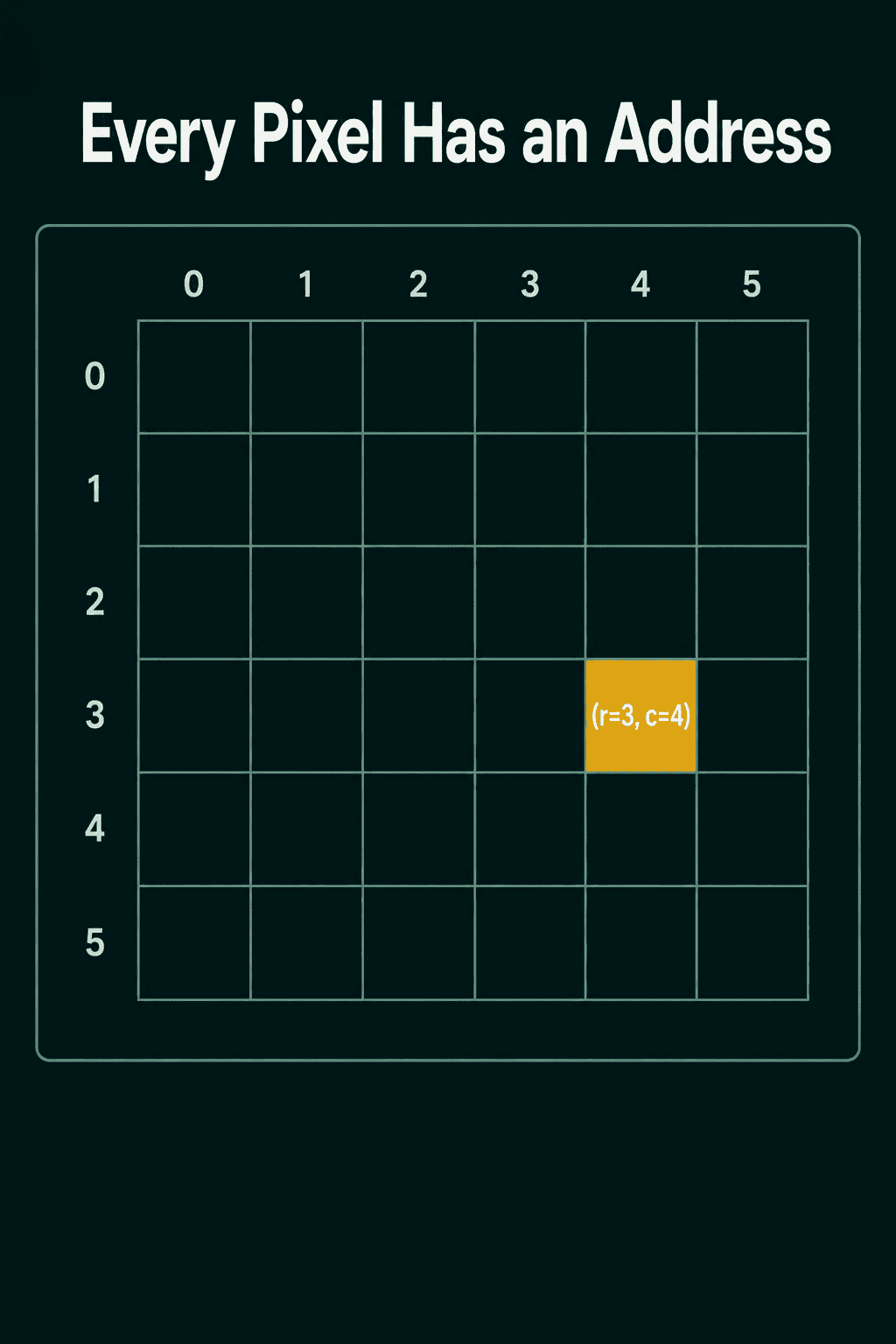
A grid of height $H$ and width $W$ has $H$ rows and $W$ columns. Each pixel sits at one row and one column, counted from 0, with row 0 at the top. In the small 6 by 6 grid below, the amber pixel is at row 3, column 4. Change the address and you are reading a different measurement.
Row and column vs x and y
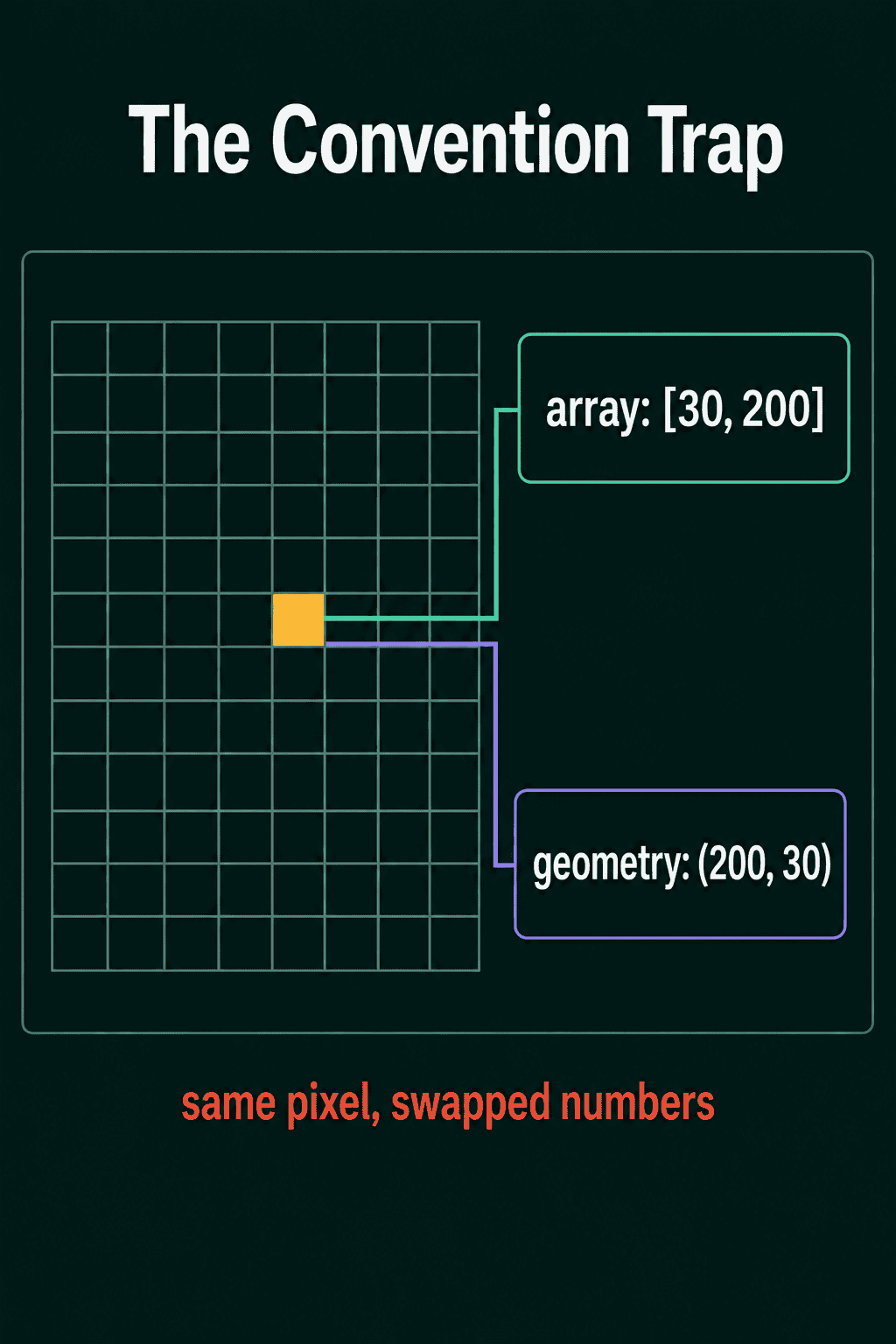
The same pixel has two common names, and which one you get depends on the library. Array libraries such as PyTorch index an image as [row, column], row first. The shape is $(H, W)$, or $(H, W, C)$ when the image has $C$ channels. Geometry and annotation tools use $(x, y)$ instead, with $x$ across and $y$ down, $x$ first.
So the pixel that an array calls [30, 200] is $(x=200, y=30)$ in an annotation file. The two numbers swap places, and mixing them up raises no error.
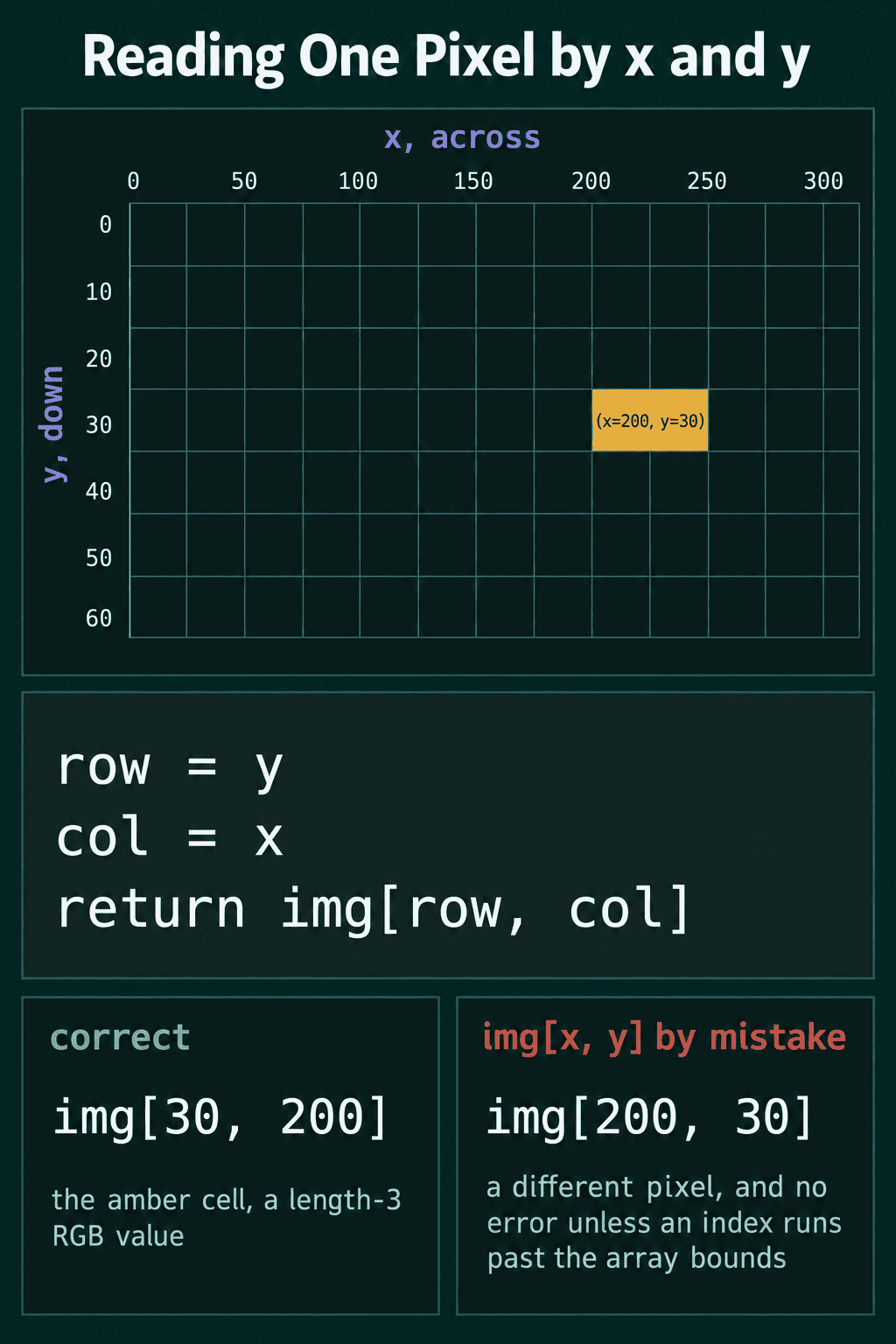
To fetch the pixel at annotation coordinates $(x, y)$ from an array, put $y$ first:
import torch
img = torch.zeros(480, 640, 3, dtype=torch.uint8) # (H, W, C): 480 rows, 640 columns
img[30, 200] = torch.tensor([187, 92, 40]) # row 30, column 200
def get_pixel(img, x, y):
row = y
col = x
return img[row, col]
print(img.shape)
print(get_pixel(img, x=200, y=30))
print(img[200, 30]) # x and y swapped by mistake: a different pixel, no errortorch.Size([480, 640, 3])
tensor([187, 92, 40], dtype=torch.uint8)
tensor([0, 0, 0], dtype=torch.uint8)get_pixel returns the three color values stored at that spot. Writing img[x, y] instead reads img[200, 30], a different pixel. Nothing errors unless a coordinate runs past the edge of the array, so the mistake usually goes unnoticed.
Where the origin sits
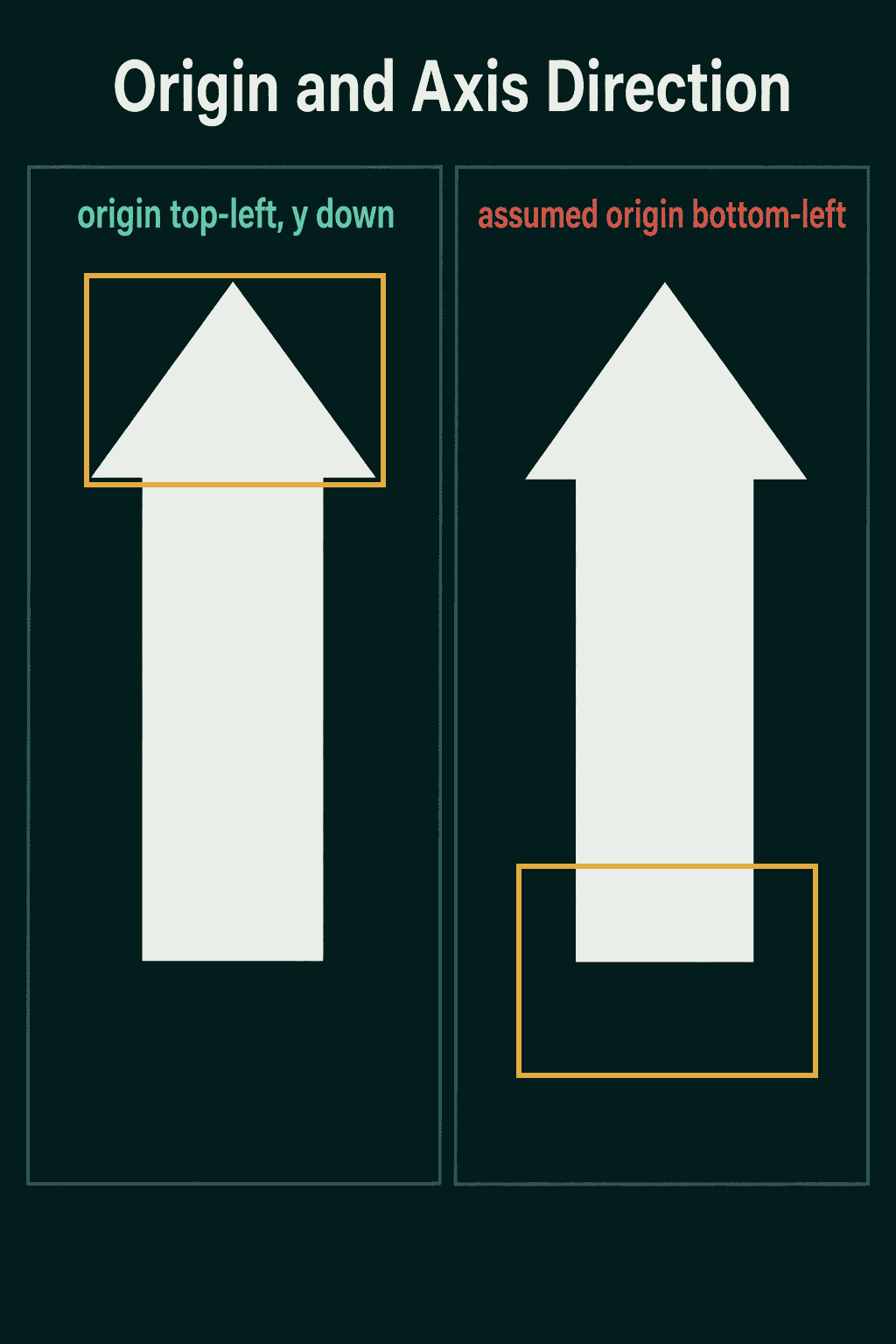
The origin is the point $(0, 0)$. Most image tools put it at the top-left corner, with $y$ increasing downward. Some plotting and math tools put it at the bottom-left, with $y$ increasing upward. Assume the wrong one and boxes and masks come out flipped upside down. A box drawn around the top of an object ends up near the bottom of the image.
Whole-number indices vs in-between coordinates
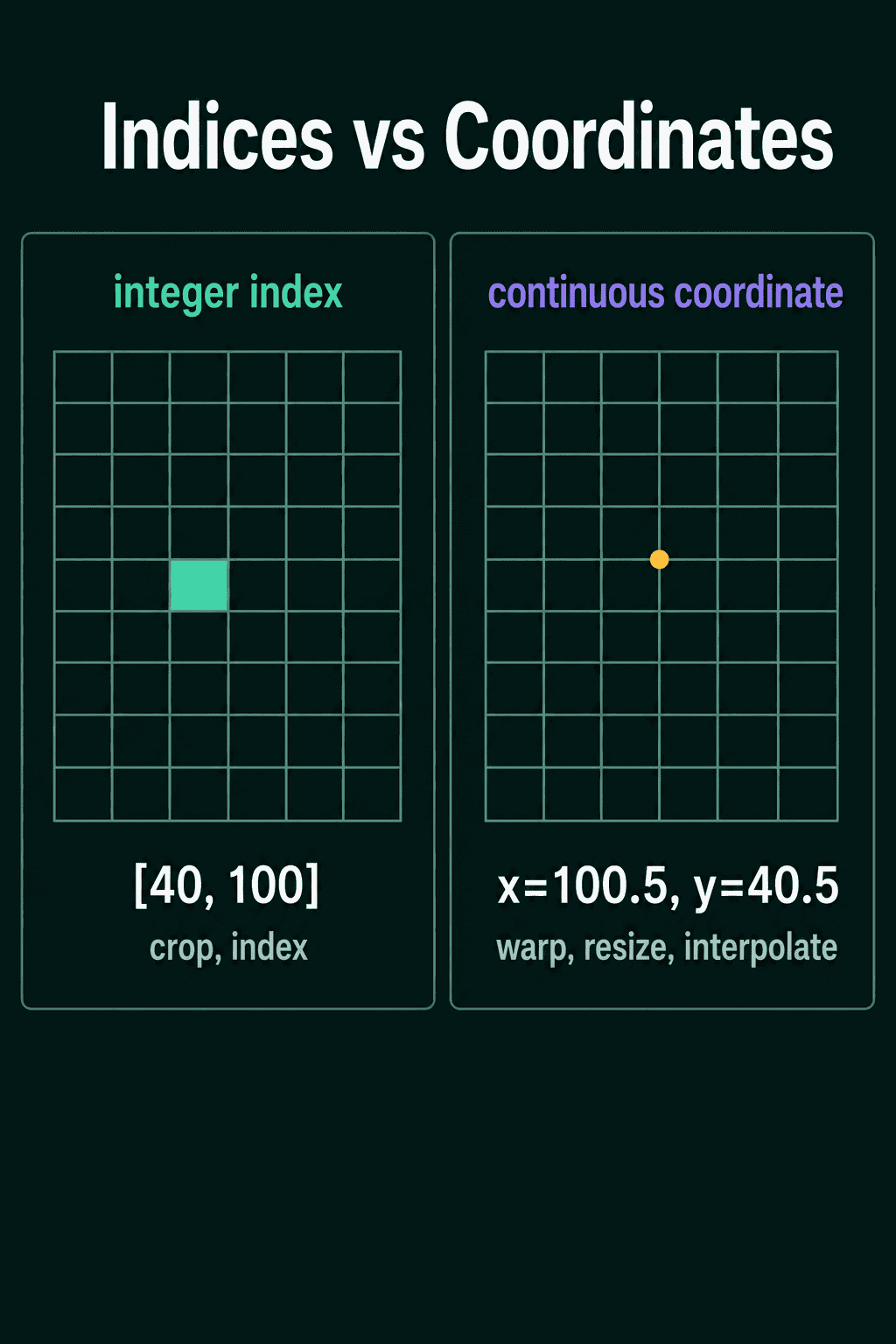
Whole-number indices name one specific cell, such as row 40, column 100. Continuous coordinates can also name a position between cells, such as $x = 100.5$. Cropping and indexing use whole numbers. Resizing and rotating an image ask for values at positions that fall between the stored pixels, so they estimate those values from the pixels around them. That estimate is called interpolation.
Moving a box after a crop
Crop off the left 30 columns of an image and every remaining pixel moves 30 places to the left. Boxes, body points and masks are all coordinates, so each one has to move the same way the image did. A mask is an image that marks which pixels belong to an object.
A box written as $(x_0, y_0, x_1, y_1)$ gives its left, top, right and bottom edges. After a crop that removes the left crop_x0 columns and the top crop_y0 rows, subtract crop_x0 from both $x$ values and crop_y0 from both $y$ values. The code below crops a 280 by 200 image and checks that the shifted box still covers the object:
import torch
def shift_box_for_crop(box, crop_x0, crop_y0):
x0, y0, x1, y1 = box
new_x0, new_x1 = x0 - crop_x0, x1 - crop_x0
new_y0, new_y1 = y0 - crop_y0, y1 - crop_y0
return (new_x0, new_y0, new_x1, new_y1)
img = torch.zeros(200, 280) # 200 rows, 280 columns
img[50:150, 100:200] = 1.0 # the object inside box (100, 50, 200, 150)
cropped = img[10:, 30:] # remove the top 10 rows and the left 30 columns
x0, y0, x1, y1 = shift_box_for_crop((100, 50, 200, 150), crop_x0=30, crop_y0=10)
print(cropped.shape)
print((x0, y0, x1, y1))
print(cropped[y0:y1, x0:x1].min().item()) # 1.0: the shifted box still covers the objecttorch.Size([190, 250])
(70, 40, 170, 140)
1.0The box at $(100, 50, 200, 150)$ becomes $(70, 40, 170, 140)$. Every corner shifts by the same crop offset, so the box still sits on the same object.
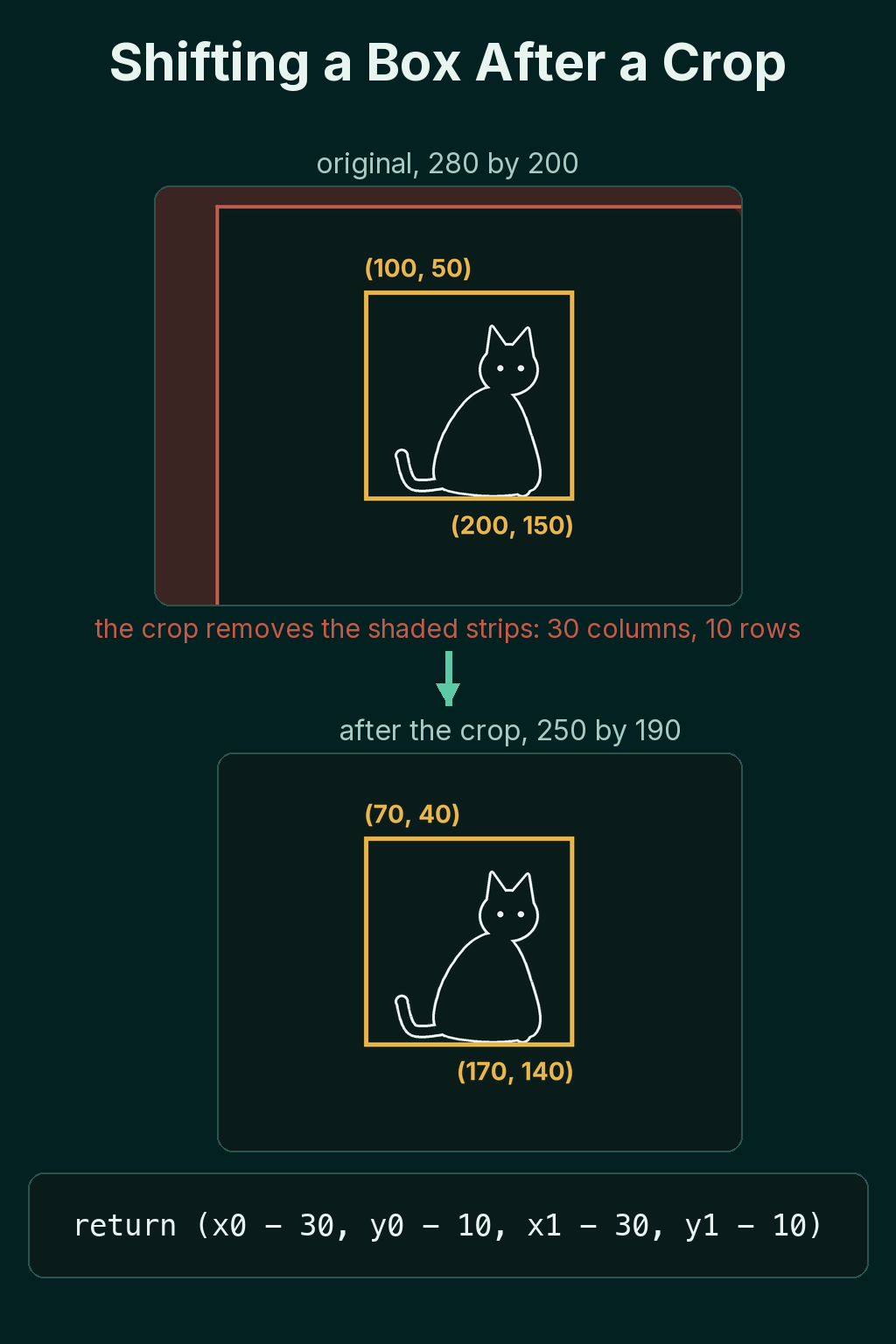
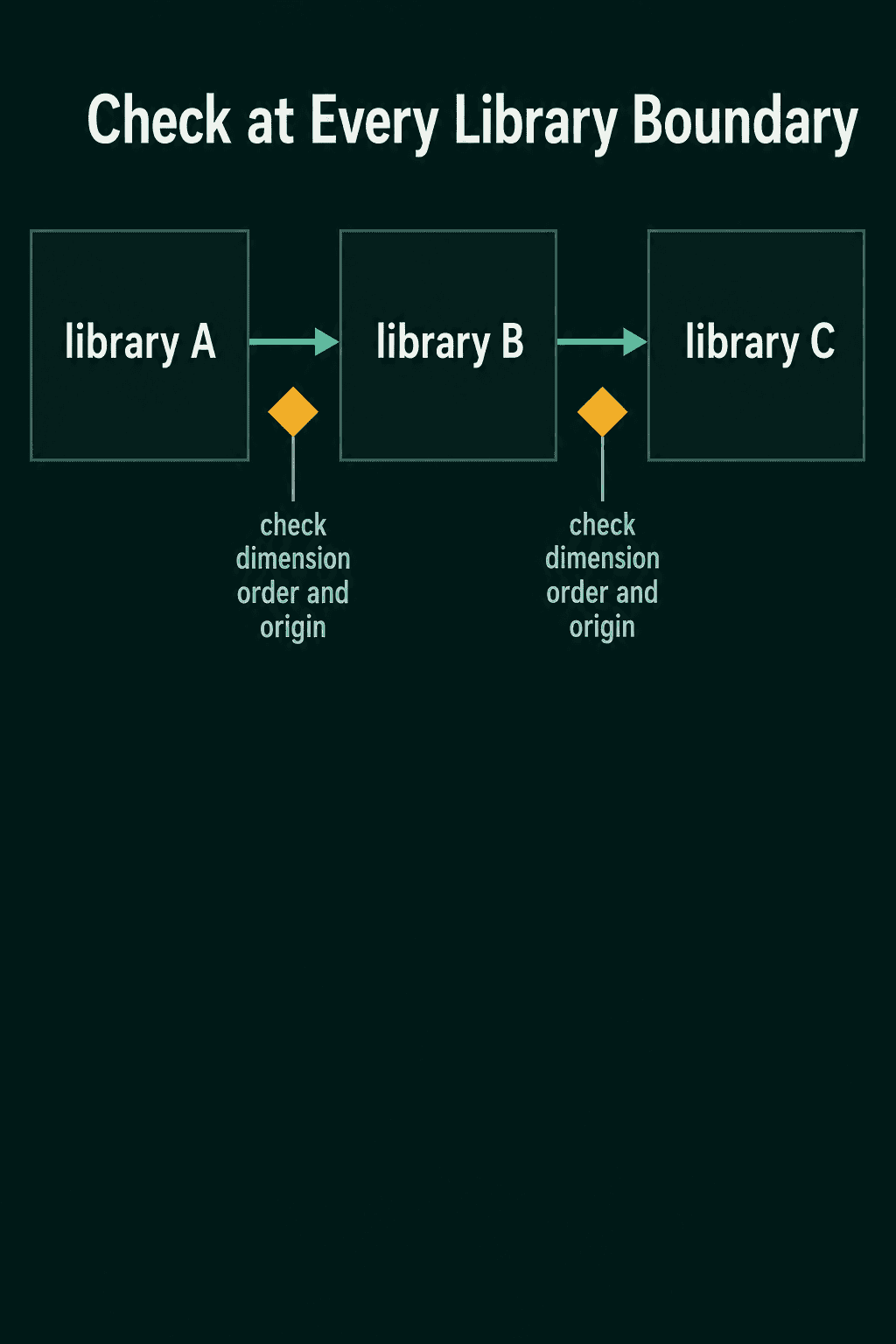
Coordinate bugs rarely look like coordinate bugs. A box shifted 20 pixels, a mask flipped upside down or body points rotated by 90 degrees all show up as a model that scores poorly, and more training does not fix them. Every time images or coordinates move from one library to another, check the dimension order and where the origin sits. Then draw the boxes on the image and look.
Channels: what each pixel stores
An address says where a pixel is. What is stored there depends on how many channels the image has. A channel is one full grid of numbers, and an image can stack several of them.
Grayscale: one channel
A grayscale image has a single channel: one intensity value per pixel, usually from 0 for black up to 255 for white. Its shape is $(H, W)$, or $(H, W, 1)$ if a library keeps the channel dimension.
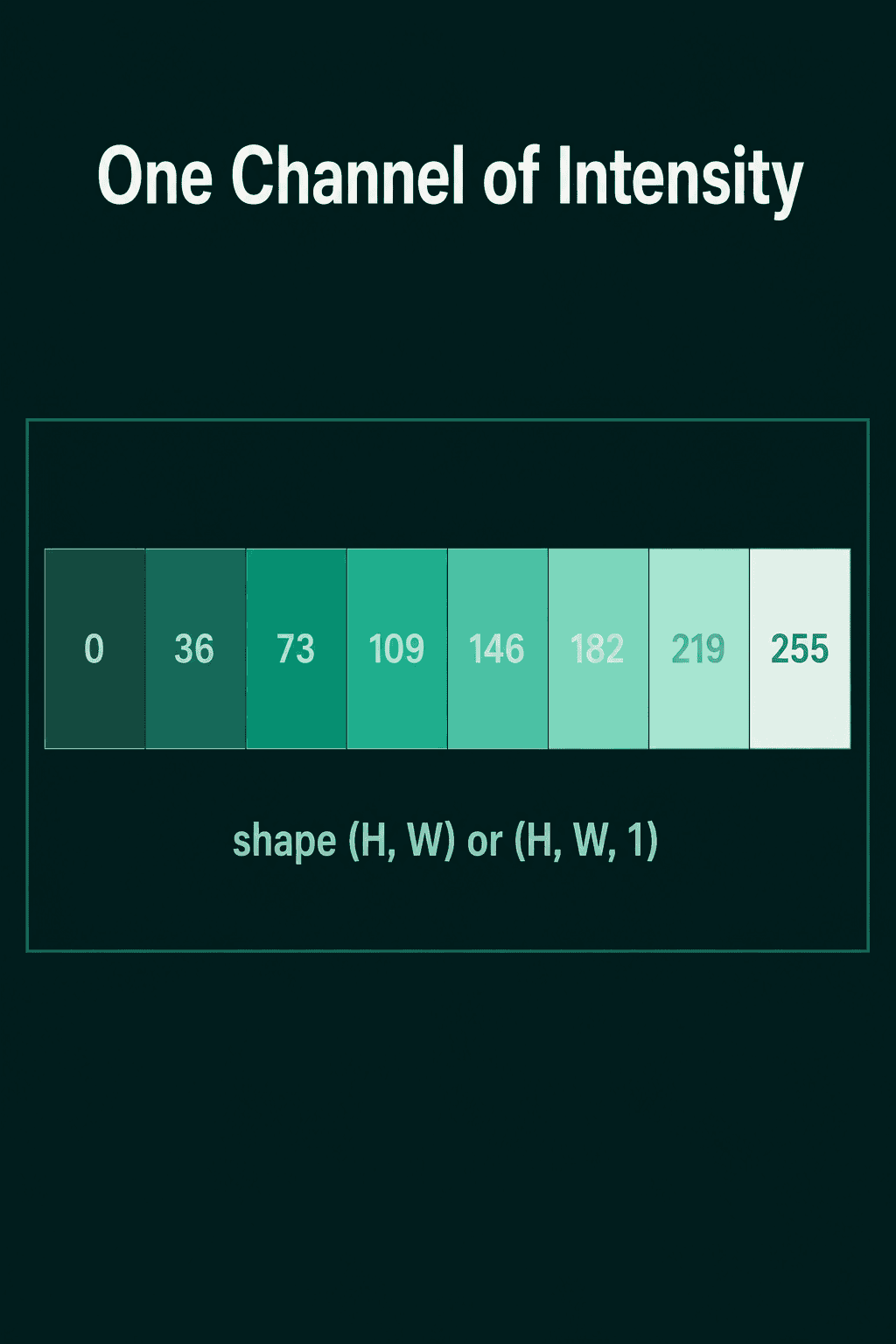
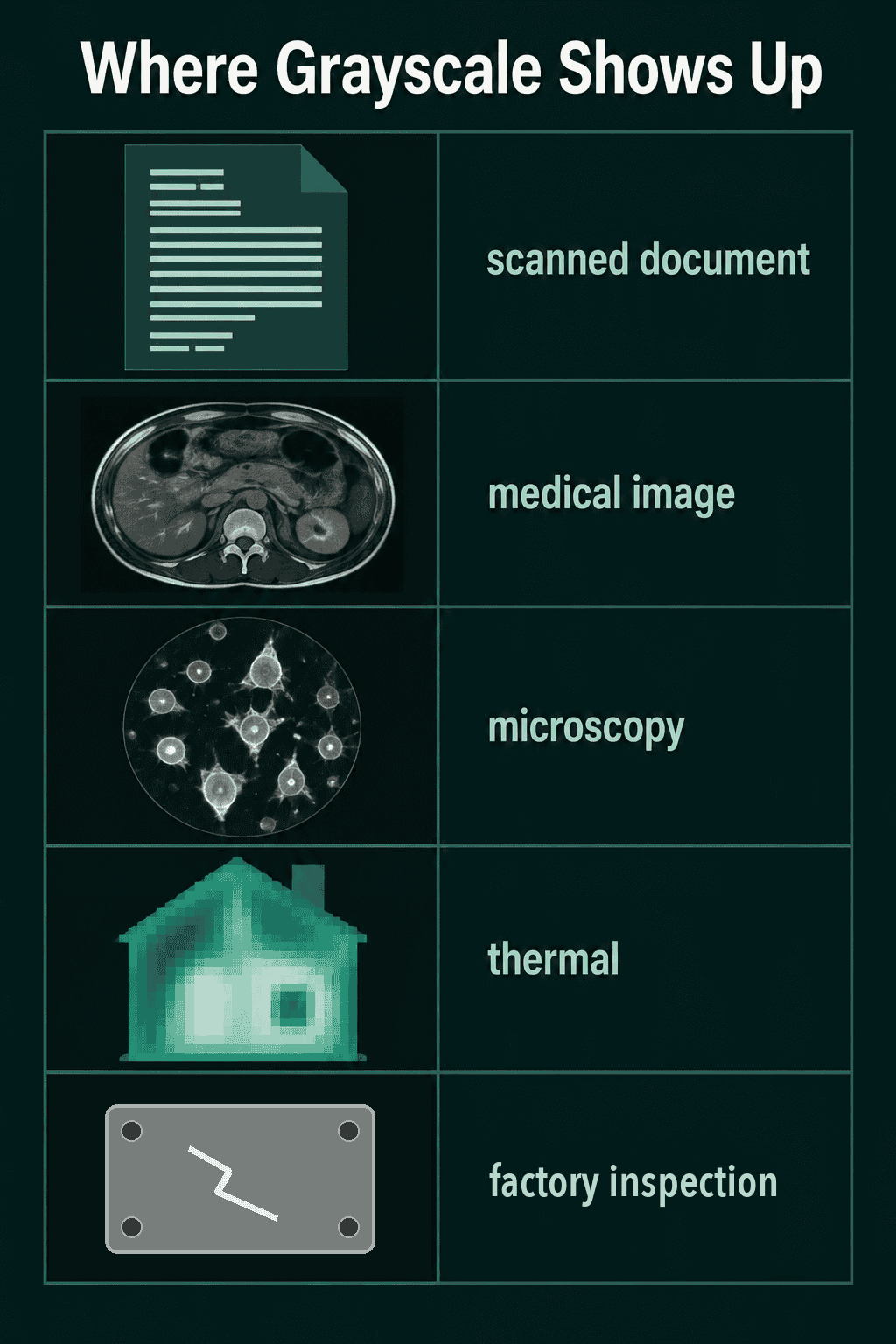
Plenty of images measure brightness alone. Scanned documents, many medical images, microscopy and thermal cameras all use a single channel. Simple factory inspection often does too, because a defect shows up as a change in brightness. Converting these images to three channels stores the same values three times and adds no information.
RGB: three stacked grids
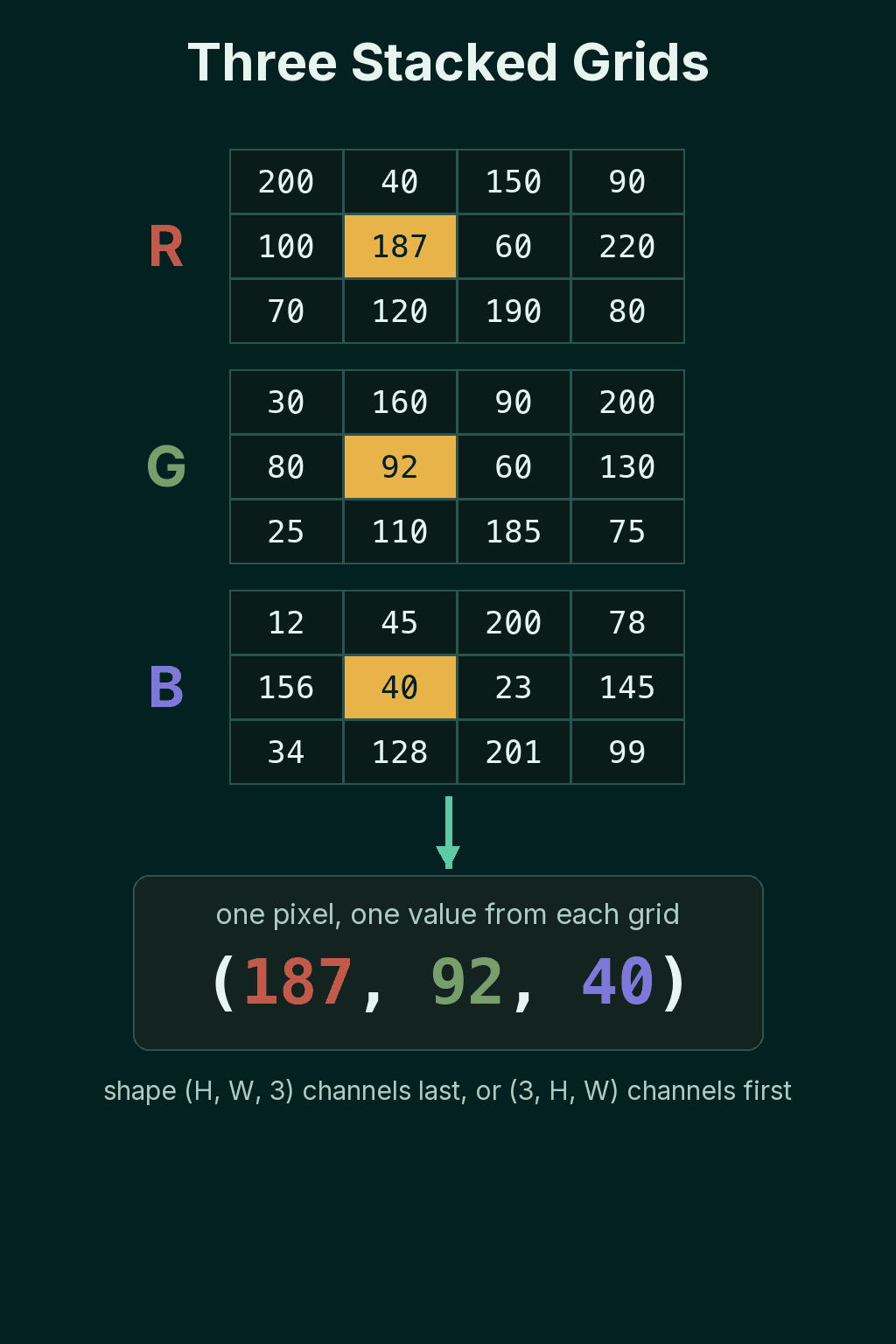
An RGB image has three channels: one grid for red, one for green and one for blue. All three have the same height and width, and each holds values from 0 to 255. Stack the three grids and each pixel becomes a triple. For example, one pixel might be $(187, 92, 40)$: 187 red, 92 green and 40 blue. With 256 values per channel, an RGB pixel can take $256^3 = 16{,}777{,}216$ different triples, about 16.7 million.
The shape is $(H, W, 3)$ when the channel dimension sits last, or $(3, H, W)$ when it sits first. Both layouts are covered further down.
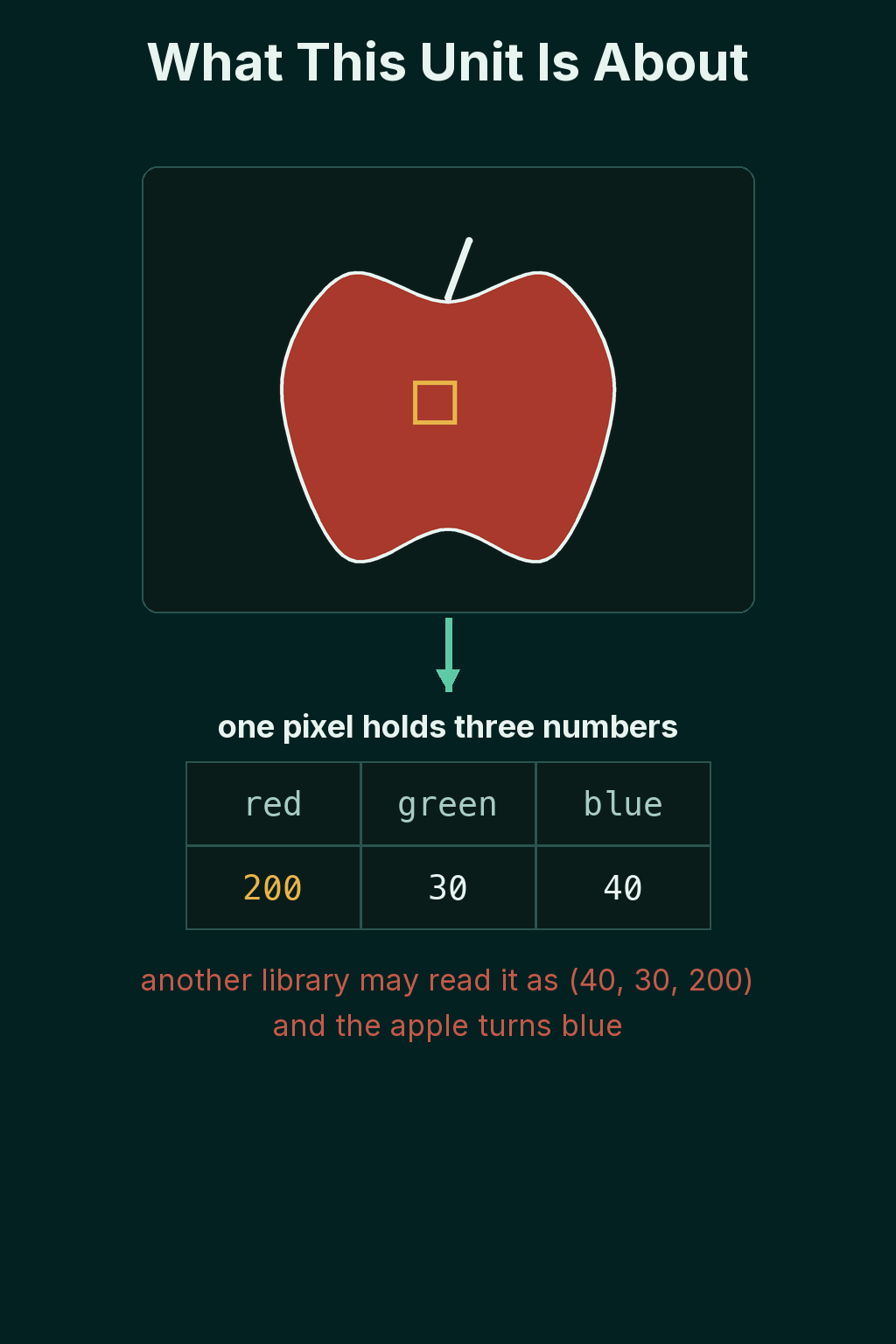
The order of the three channels is a convention too. A red apple pixel such as $(200, 30, 40)$ read by a library that expects the channels in the opposite order becomes $(40, 30, 200)$, and the apple turns blue.
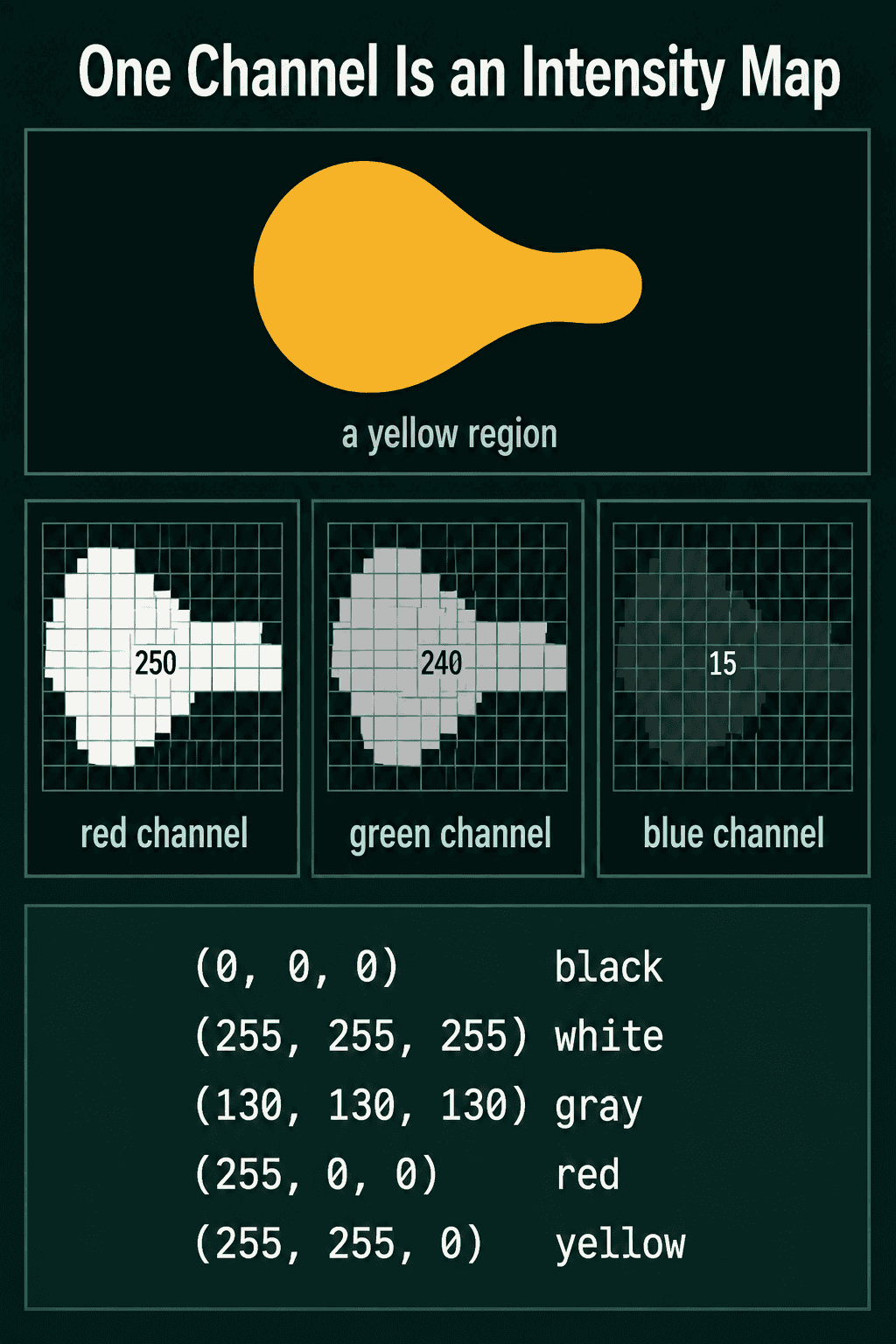
Each channel on its own is a grayscale grid: high where that color is strong and low where it is weak. Equal values such as $(130, 130, 130)$ are gray and $(255, 0, 0)$ is pure red. $(255, 255, 0)$ is yellow, which is red plus green with no blue. So a bright yellow region has high values in the red and green channels and values near zero in the blue channel:
import torch
# a 4 by 4 RGB image, channels last: black, with a yellow 2 by 2 square in the middle
img = torch.zeros(4, 4, 3, dtype=torch.uint8)
img[1:3, 1:3] = torch.tensor([250, 240, 15])
red, green, blue = img[..., 0], img[..., 1], img[..., 2]
print(red)
print(blue)
print(f"{256 ** 3:,} possible RGB triples")tensor([[ 0, 0, 0, 0],
[ 0, 250, 250, 0],
[ 0, 250, 250, 0],
[ 0, 0, 0, 0]], dtype=torch.uint8)
tensor([[ 0, 0, 0, 0],
[ 0, 15, 15, 0],
[ 0, 15, 15, 0],
[ 0, 0, 0, 0]], dtype=torch.uint8)
16,777,216 possible RGB triplesimg[..., 0] keeps every row and column and picks channel 0, so it is the red grid. The yellow square shows up as 250 there and only 15 in the blue grid.
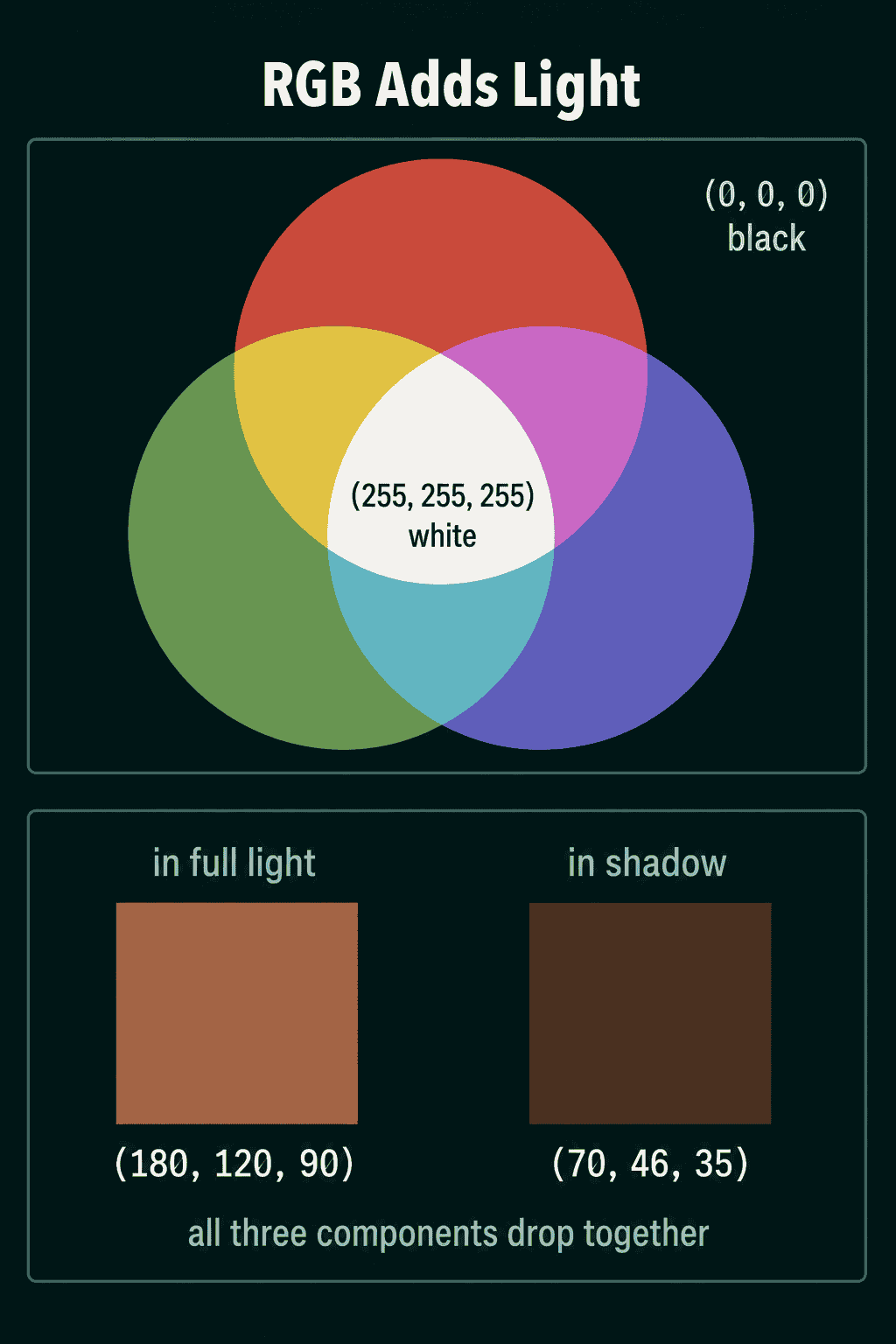
A screen makes color by giving off red, green and blue light and adding them together. All three at full strength gives white and all three at zero gives black. Raising one channel changes the color and also makes the pixel brighter, because there is more light in total. A shadow across a red wall lowers all three channels together, because less light reaches the camera:
import torch
lit = torch.tensor([180, 120, 90]).float() # a red wall in full light
shade = torch.tensor([70, 46, 35]).float() # the same wall in shadow
print(shade / lit)tensor([0.3889, 0.3833, 0.3889])Each channel keeps about 39 percent of its value in the shadow. In RGB, brightness and color are mixed into the same three numbers.
Alpha: a fourth channel for transparency
Some images have a fourth channel called alpha, which stores how see-through each pixel is. A value of 255 means fully solid, 0 means fully transparent, and values in between are partly see-through. RGB plus alpha is called RGBA. PNG files with transparency carry alpha, and so do cutout product photos, game graphics and some masks.
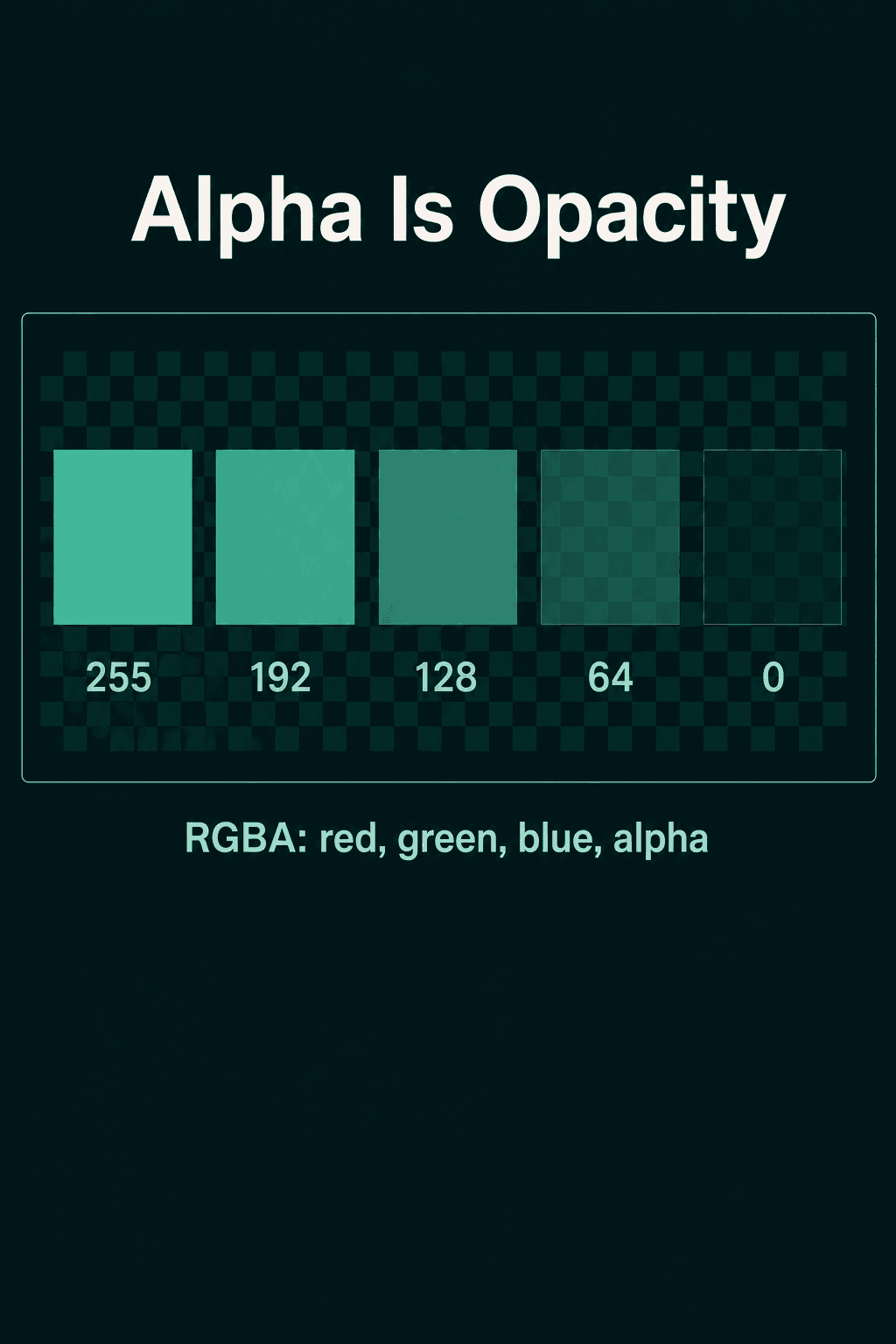
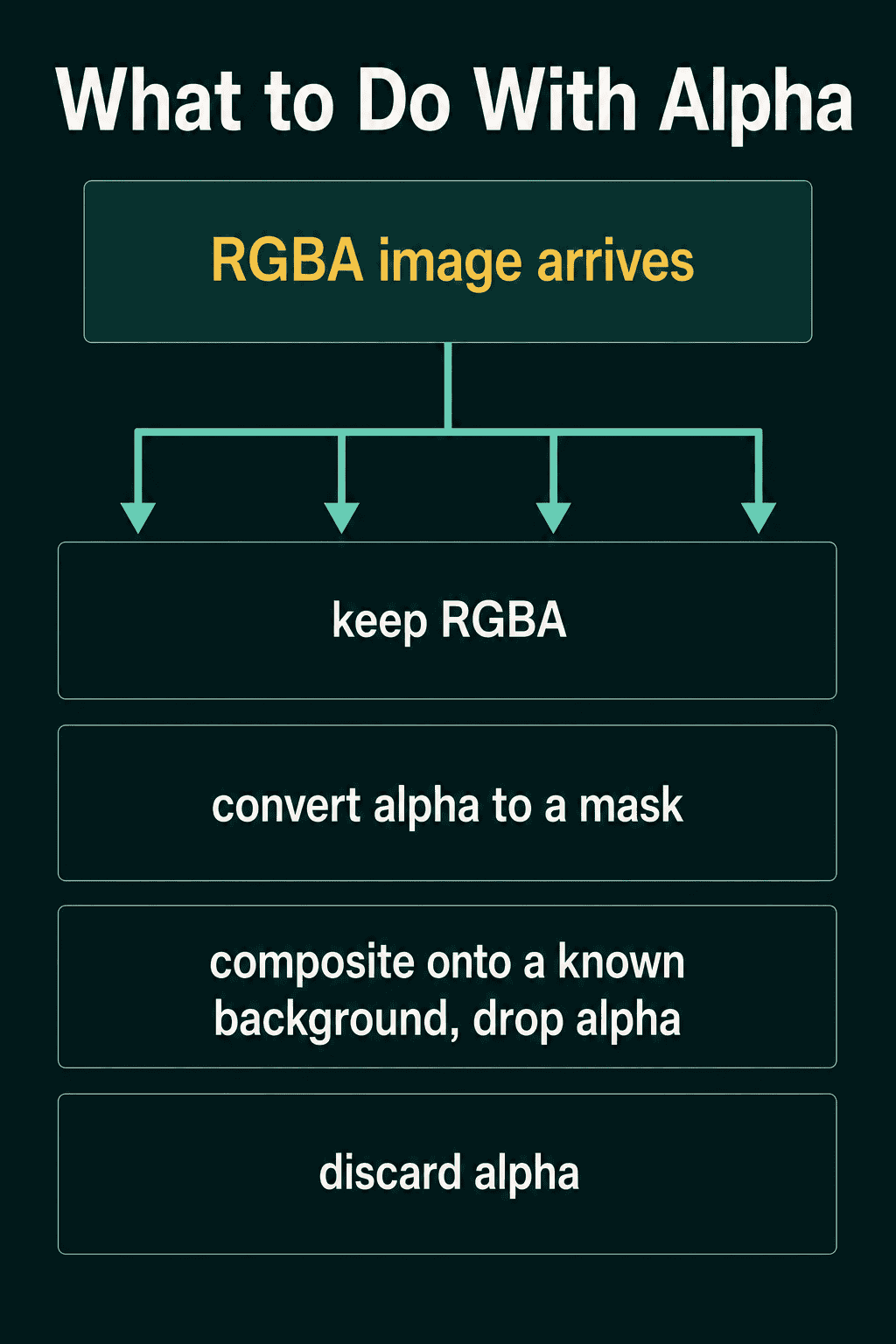
Code that assumes three channels breaks on RGBA. The shape check fails, or alpha gets read as a color and tints the image, or the transparent areas load as black and change the pixel statistics. There are four sensible choices, and the right one depends on the task:
- keep RGBA if the model uses transparency
- turn alpha into a separate mask of which pixels are solid
- place the image on a known background color, then drop alpha
- drop alpha if it carries nothing the model needs
A common bug is letting a loading library make this choice without telling you.
From image to tensor
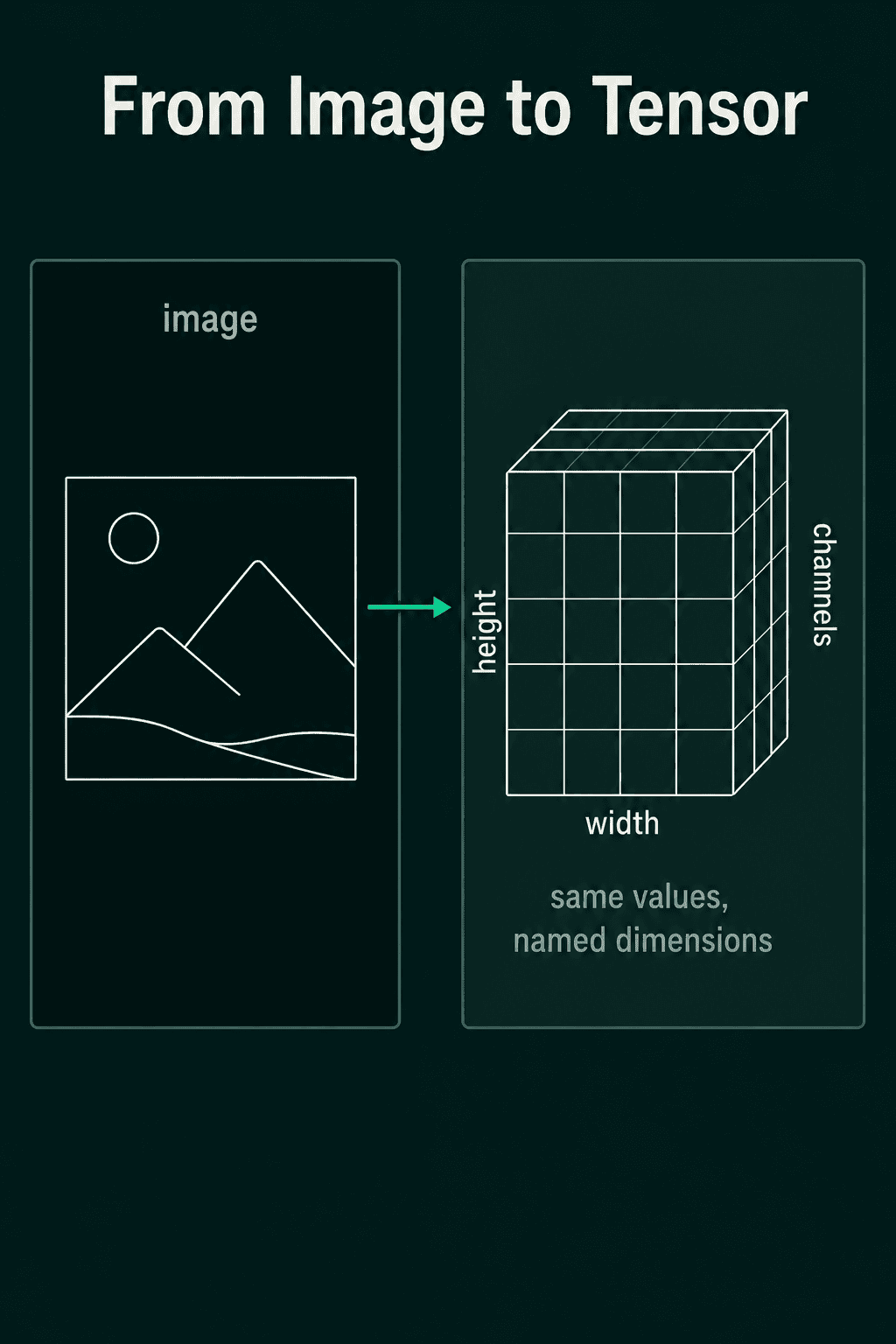
A neural network reads an image as a tensor: a multi-dimensional array of numbers where each dimension has a meaning. The pixel values stay the same. What the tensor adds is a fixed order of dimensions, such as channels, height and width. Every layer in a model expects a tensor of a known shape, so when something goes wrong the shape is usually the first thing to check.
Loading an image in PyTorch
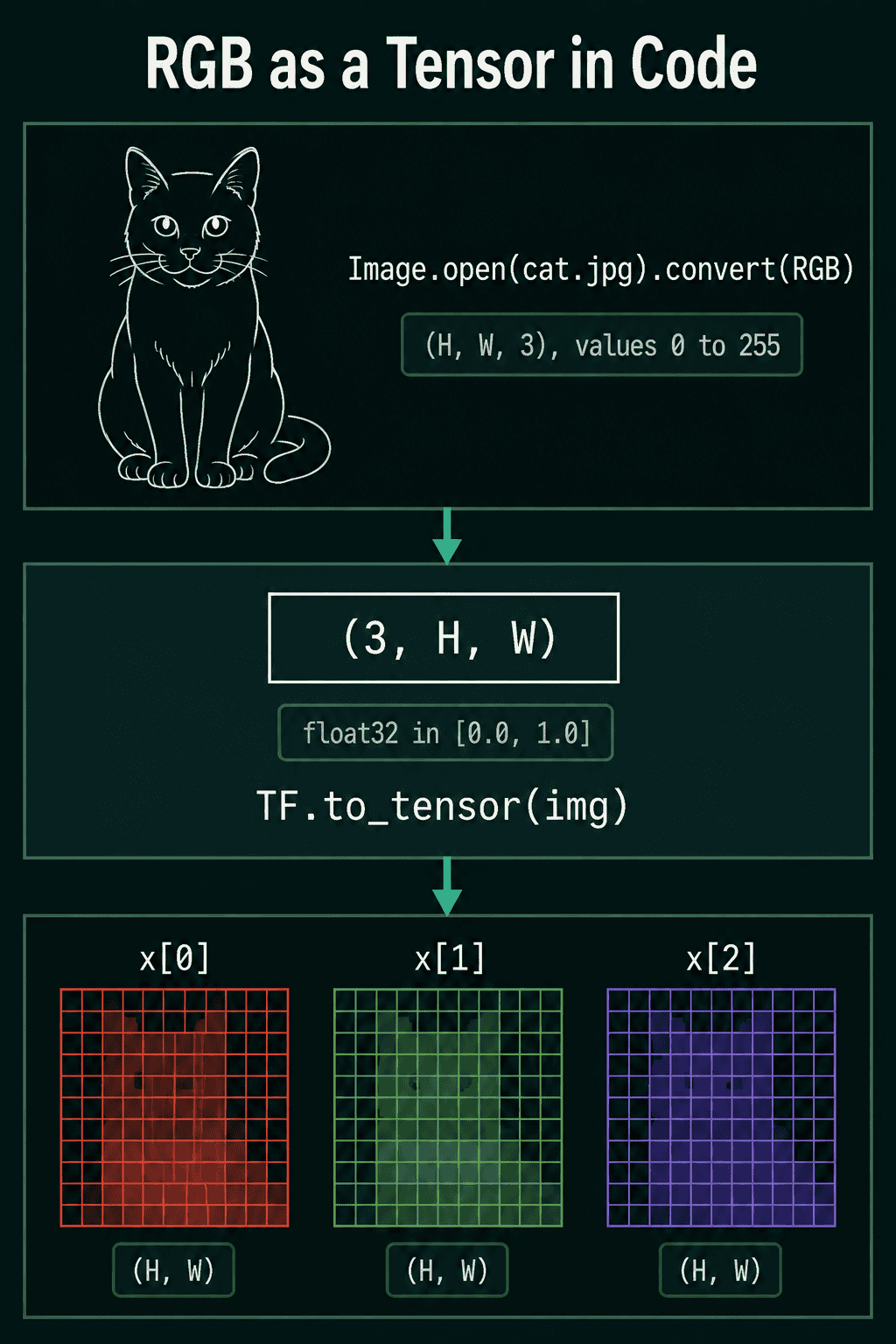
The usual loading code opens the file with Pillow (PIL), calls .convert('RGB') to force exactly three channels, then calls torchvision's to_tensor. That function does two things. It moves the channel dimension to the front, and it rescales the whole numbers 0 to 255 into decimals from 0.0 to 1.0.
The snippet below does the same two steps in plain PyTorch, on an image built in memory so it runs without a file. Pillow reports an image's size as (width, height), so the helper reads w first:
import torch
from PIL import Image
def to_chw_float(img):
"""What torchvision's to_tensor does: channels to the front, 0-255 rescaled to 0.0-1.0."""
w, h = img.size # PIL reports (width, height)
c = len(img.getbands()) # 3 for 'RGB', 1 for 'L'
hwc = torch.frombuffer(bytearray(img.tobytes()), dtype=torch.uint8).reshape(h, w, c)
return hwc.permute(2, 0, 1).float() / 255
photo = Image.new("RGBA", (640, 480), (200, 30, 40, 255)) # a 640 wide, 480 tall RGBA image
x = to_chw_float(photo.convert("RGB")) # force exactly 3 channels
print(x.shape, x.dtype, round(x.min().item(), 3), round(x.max().item(), 3))
print(x[0].shape) # the red channel, (H, W)
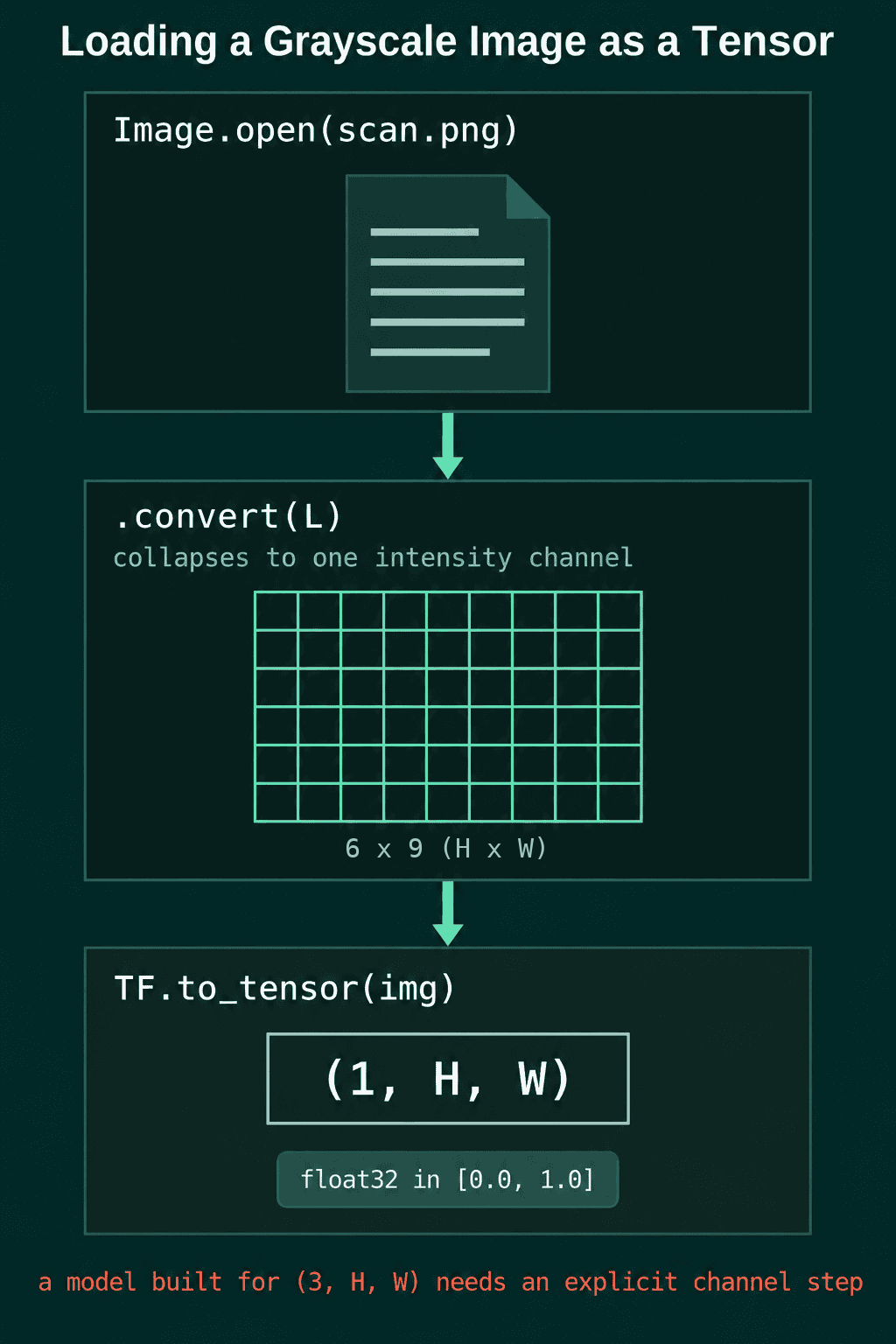
g = to_chw_float(photo.convert("L")) # 'L' means one intensity channel
print(g.shape)torch.Size([3, 480, 640]) torch.float32 0.118 0.784
torch.Size([480, 640])
torch.Size([1, 480, 640])The RGB tensor is $(3, H, W)$ with values between 0 and 1: the green value 30 becomes $30 / 255 \approx 0.118$ and the red value 200 becomes $200 / 255 \approx 0.784$. Indexing x[0], x[1] and x[2] pulls out the red, green and blue channels. Each one has shape $(H, W)$.
.convert('L') turns any input into one intensity channel, so the tensor comes out as $(1, H, W)$. The channel dimension has length 1 instead of 3, and a model built for $(3, H, W)$ input will not accept it without an extra step that changes the channel count.
HWC vs CHW
The same RGB image can be stored in two orders. Channels last (HWC) orders the dimensions as height, width and channels, so a 224 by 224 image is $(224, 224, 3)$. Channels first (CHW) puts channels in front, as $(3, 224, 224)$.
| Layout | Shape of a 224 by 224 RGB image | Common in |
|---|---|---|
| HWC (channels last) | (224, 224, 3) |
image loading and editing libraries |
| CHW (channels first) | (3, 224, 224) |
PyTorch layers and models |
Image loading and editing libraries mostly use channels last, because files and screens keep a pixel's three color values together. Deep learning frameworks such as PyTorch use channels first, so their layers and the models trained with them expect that order. The to_chw_float helper above shows the file side. tobytes() hands back the values pixel by pixel with each pixel's red, green and blue together, which is why the tensor is first shaped $(H, W, C)$.
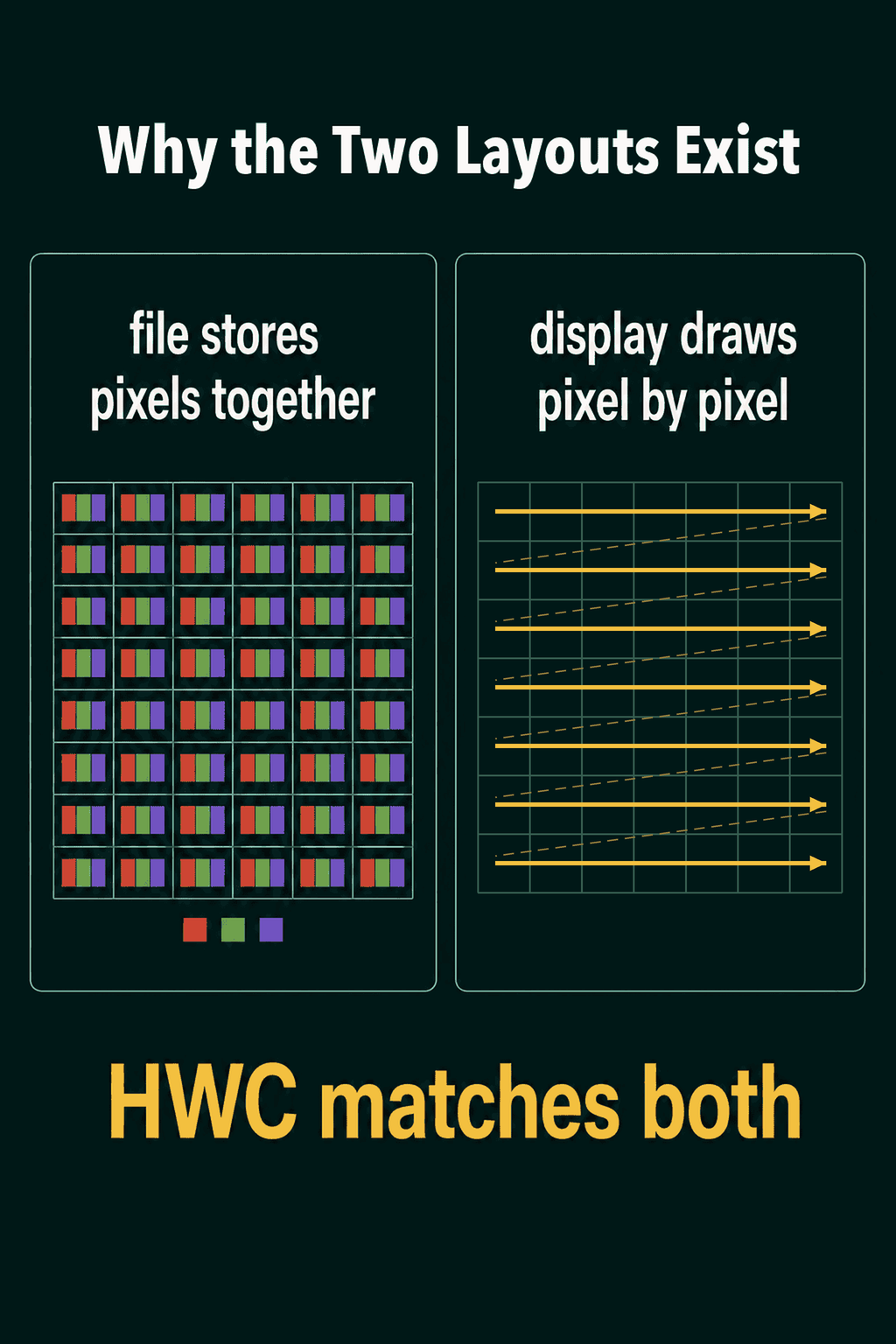
Feeding a channels-last tensor to code that expects channels first changes no values. It changes which dimension the code treats as which, so every layer reads the numbers along the wrong dimensions.
Converting HWC to CHW with permute
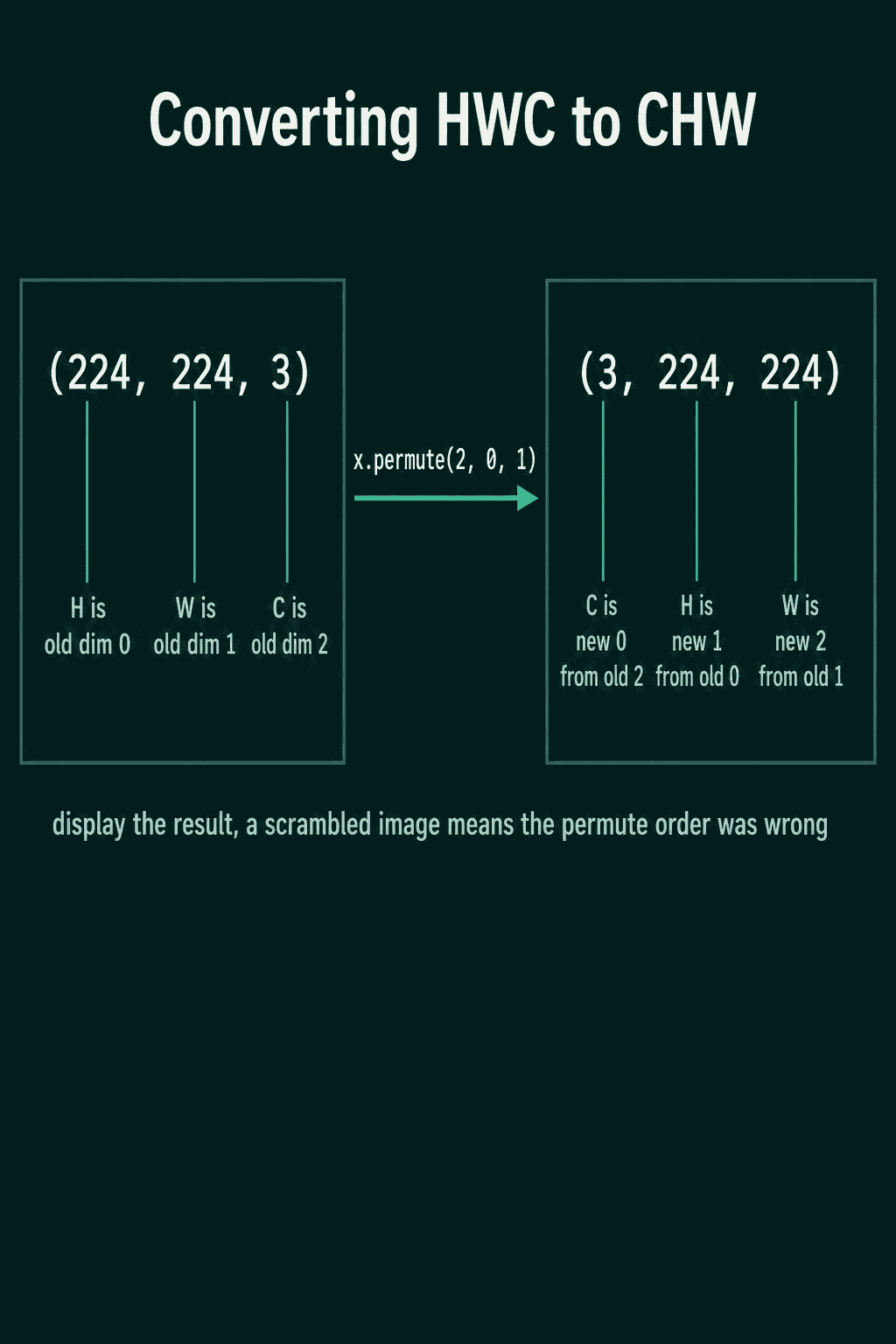
Most pipelines convert from channels last to channels first once, right after loading. permute(2, 0, 1) builds the new order from the old dimensions: old dimension 2 (channels) first, then old 0 (height), then old 1 (width). A $(224, 224, 3)$ tensor becomes $(3, 224, 224)$. Print the new shape and display the image, and if it looks scrambled, the order was wrong.
The batch dimension
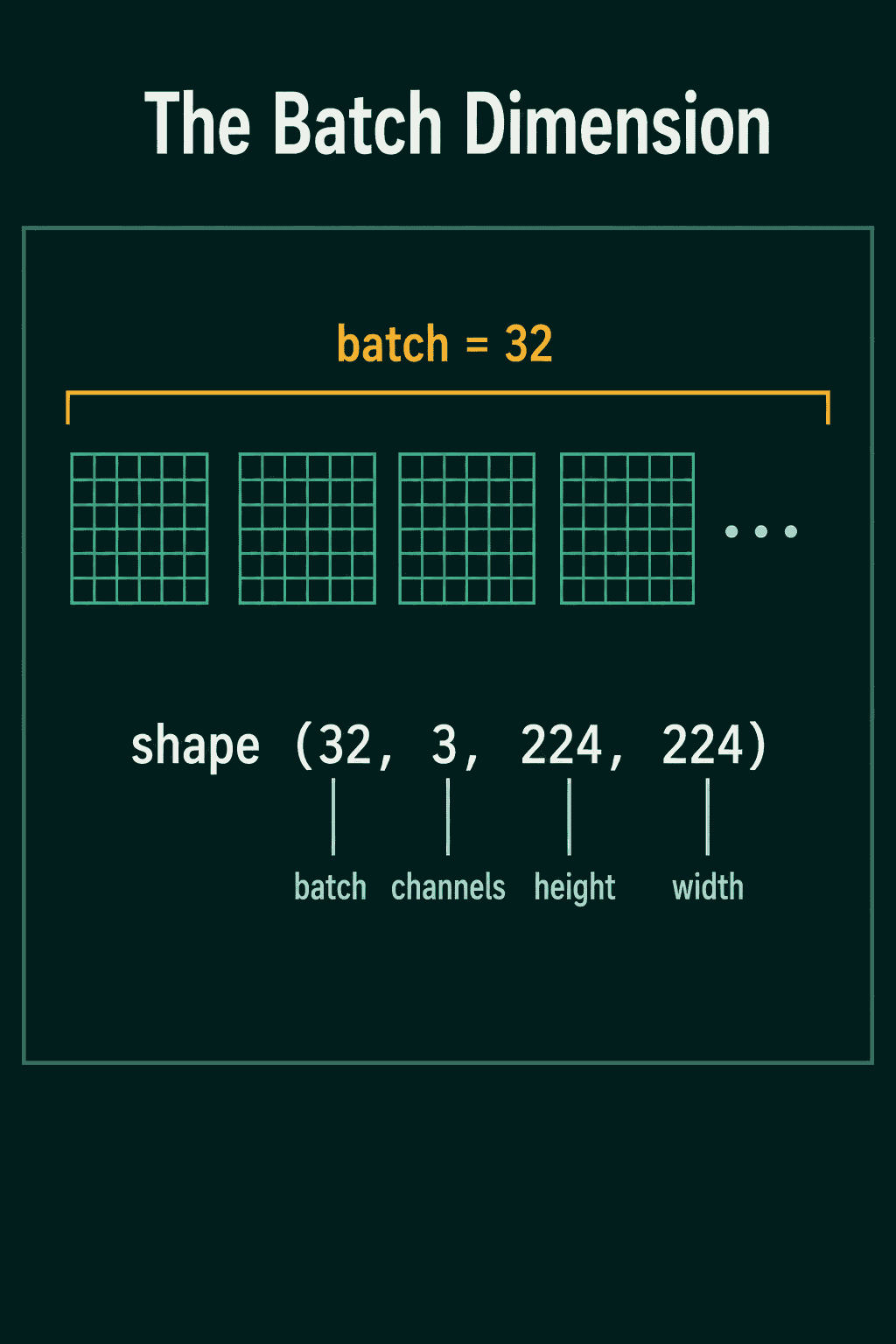
Models are usually given several images at once, and the batch dimension counts them. It goes in front of the other dimensions and is not part of any single image. One RGB image at 224 by 224 is $(3, 224, 224)$, and a batch of 32 of them is $(32, 3, 224, 224)$. Four numbers where you expected three usually means a batch dimension is there.
A layer that reports expected 4D input (got 3D input) wants a batch dimension in front of a single image. unsqueeze(0) inserts a new dimension of length 1 at the front, so $(3, 224, 224)$ becomes $(1, 3, 224, 224)$, a batch of one. After the model runs, squeeze(0) removes that leading dimension again. Here is the full path from a channels-last image, using a PyTorch layer that only accepts batches:
import torch
from torch import nn
def hwc_to_chw(x):
# x: (H, W, C)
return x.permute(2, 0, 1)
def add_batch_dim(x):
# x: (C, H, W)
return x.unsqueeze(0)
x = torch.rand(224, 224, 3) # channels last, as loaded
chw = hwc_to_chw(x)
print(chw.shape)
layer = nn.BatchNorm2d(3) # a layer that only accepts batches
try:
layer(chw)
except ValueError as e:
print(e)
out = layer(add_batch_dim(chw))
print(out.shape, out.squeeze(0).shape)
batch = torch.stack([chw] * 32) # 32 images
print(batch.shape)torch.Size([3, 224, 224])
expected 4D input (got 3D input)
torch.Size([1, 3, 224, 224]) torch.Size([3, 224, 224])
torch.Size([32, 3, 224, 224])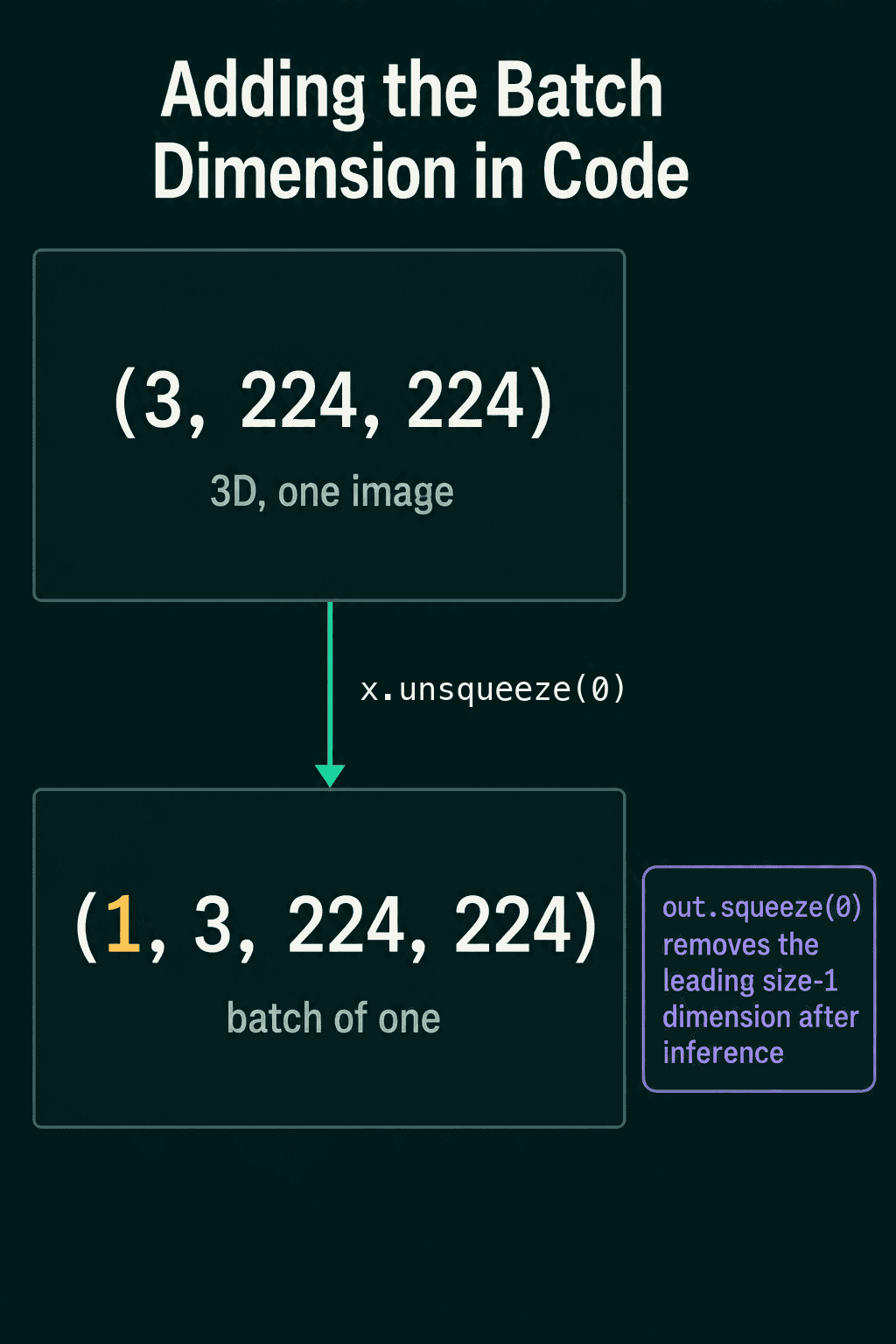
Dropping alpha in code
A model built for RGB wants three channels, and an RGBA tensor has four. Keeping the first three drops alpha. This is only safe when the transparent areas hold nothing the model needs. Otherwise, place the image on a known background color first, then drop alpha.
import torch
def drop_alpha(x):
# x: (4, H, W) RGBA float tensor
assert x.shape[0] == 4
rgb = x[:3]
assert rgb.shape[0] == 3
return rgb
rgba = torch.rand(4, 224, 224)
print(drop_alpha(rgba).shape)torch.Size([3, 224, 224])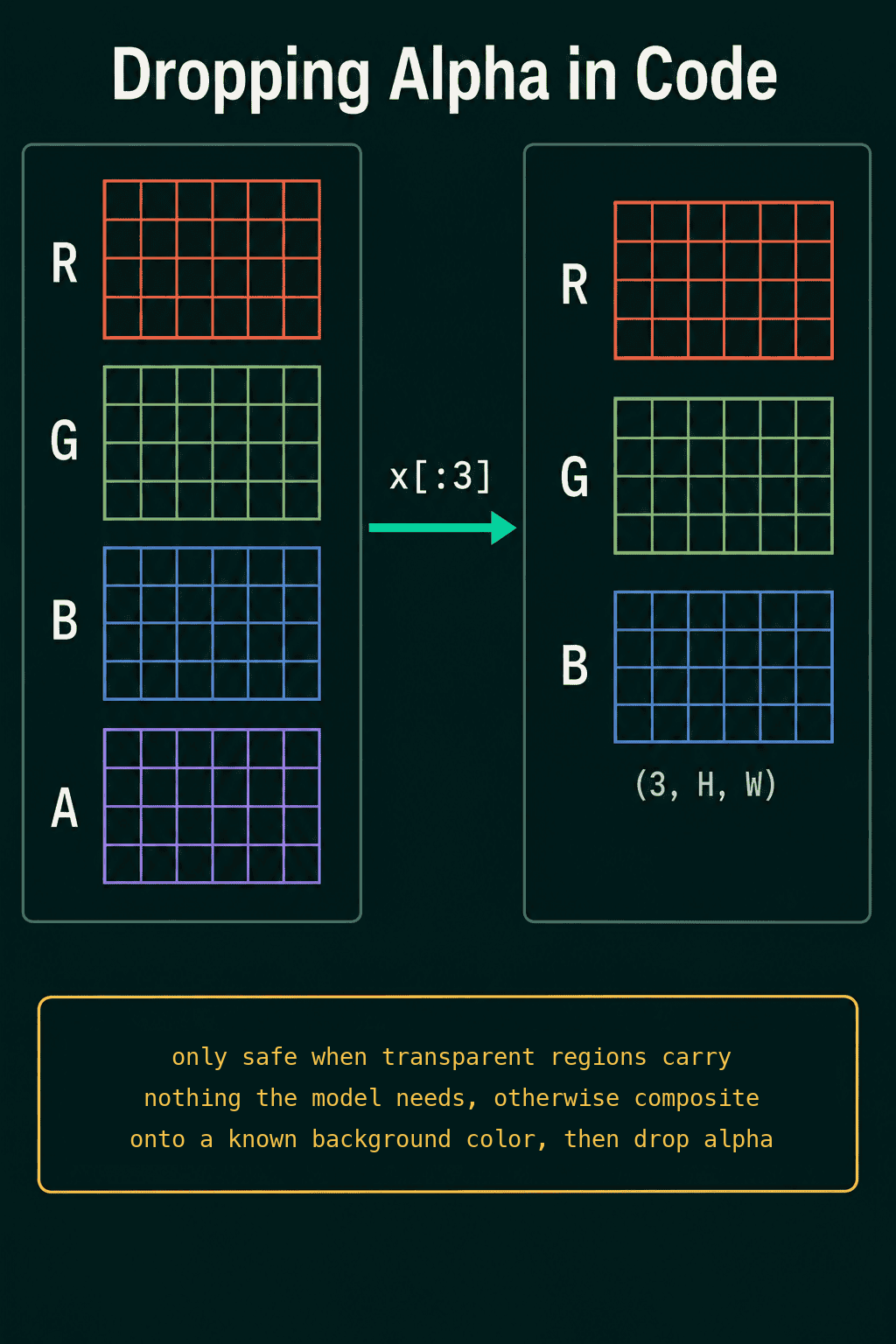
Shape is not the whole story: dtype, device and layout
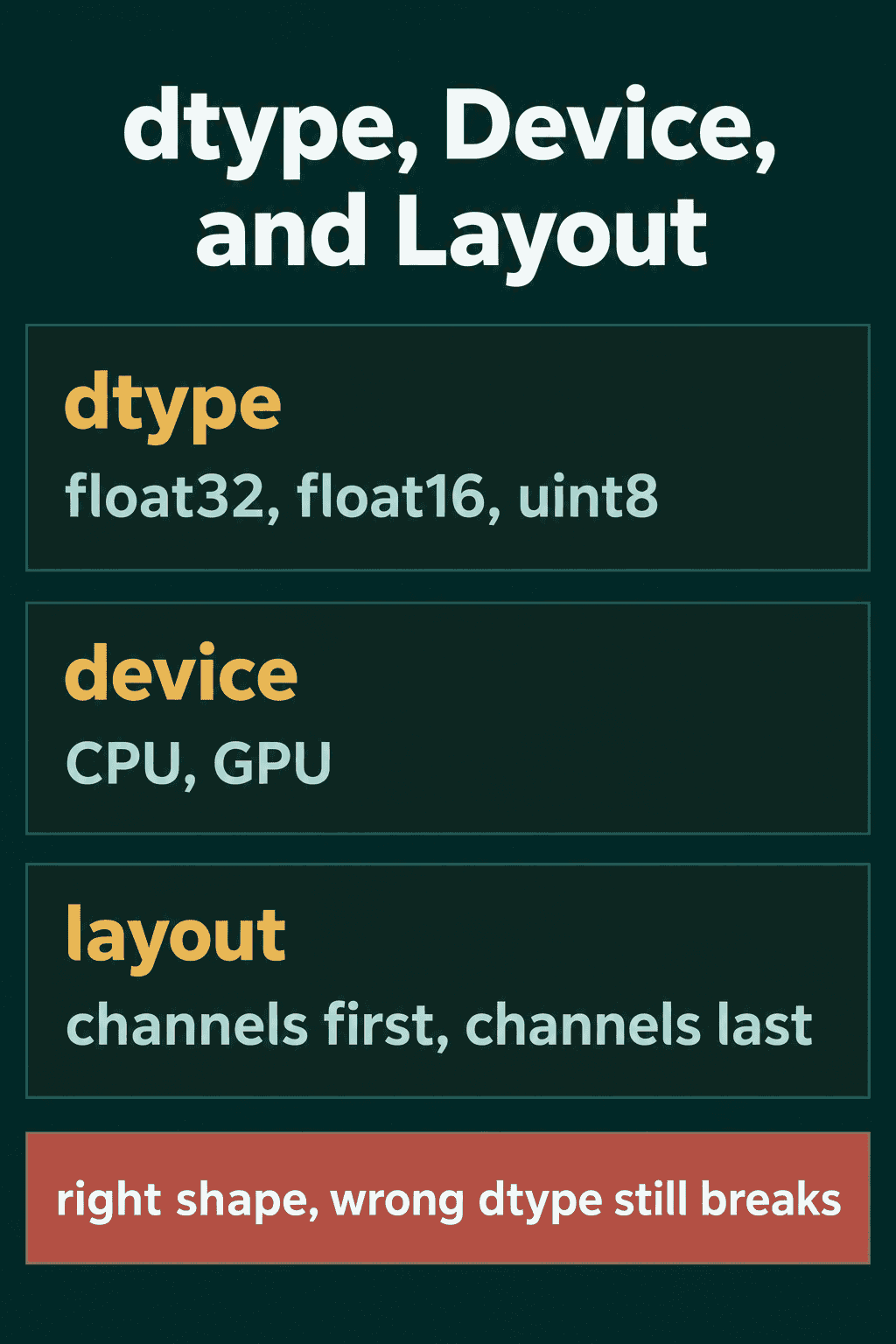
A tensor can have the right shape and still be wrong for the model. Three more properties have to match:
- dtype is the number type, such as
uint8for whole numbers from 0 to 255 orfloat32for decimals - device is where the tensor lives, on the CPU or on a GPU
- layout is the dimension order, channels first or channels last
A mismatch in any of them either raises an error or runs and gives wrong results with no warning.
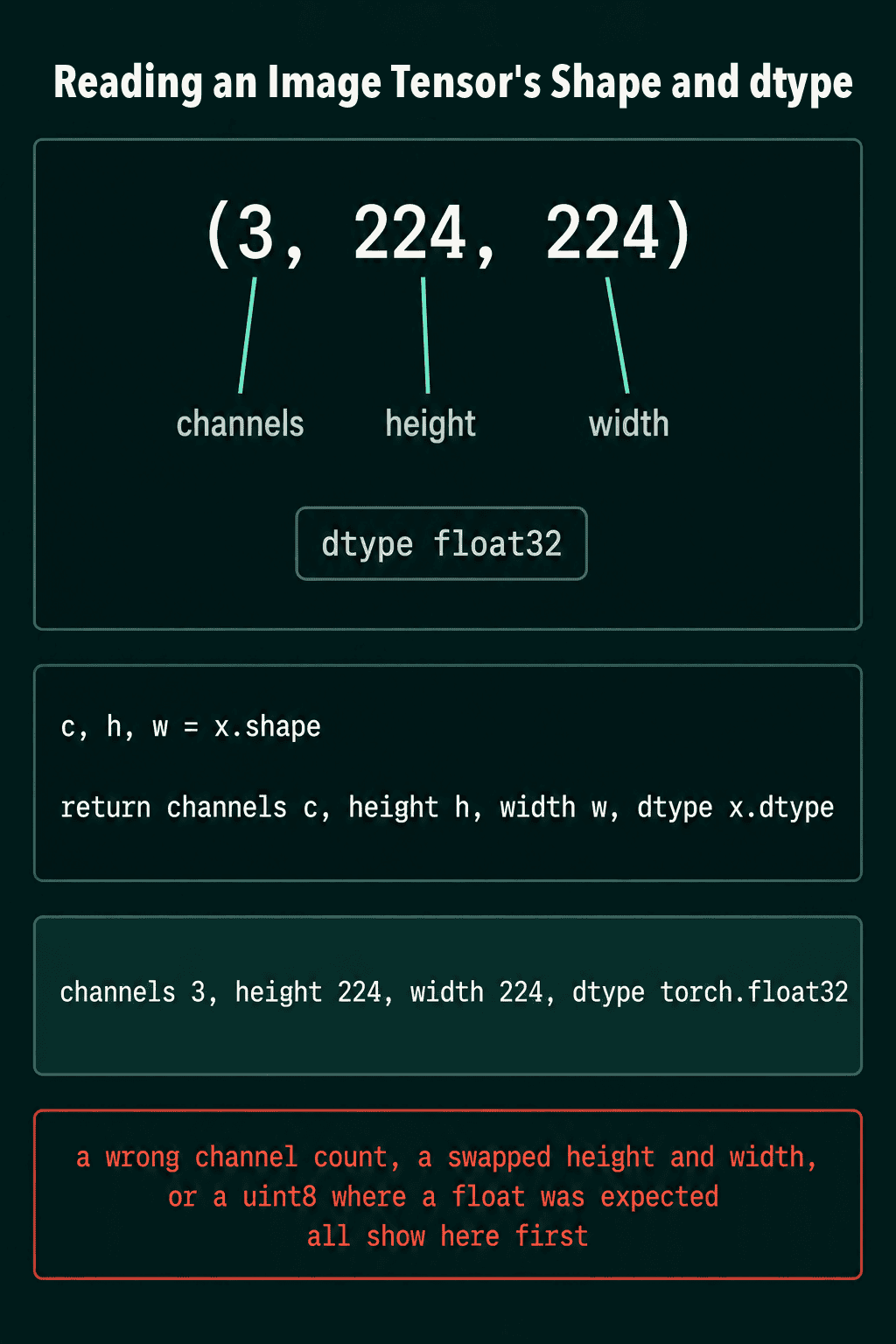
When a model raises an error, printing the shape and dtype is usually the fastest first clue. The helper below reads a single channels-first image. Run it on a channels-last uint8 tensor and two problems show up at once:
import torch
def describe_image_tensor(x):
# x: (C, H, W) single image
c, h, w = x.shape
info = {'channels': c, 'height': h, 'width': w}
info['dtype'] = x.dtype
return info
print(describe_image_tensor(torch.rand(3, 224, 224)))
loaded = torch.zeros(480, 640, 3, dtype=torch.uint8) # channels last, whole numbers
print(describe_image_tensor(loaded)){'channels': 3, 'height': 224, 'width': 224, 'dtype': torch.float32}
{'channels': 480, 'height': 640, 'width': 3, 'dtype': torch.uint8}An image with 480 channels and a width of 3 is a channels-last tensor read as channels first, and uint8 means it was never converted to floats.
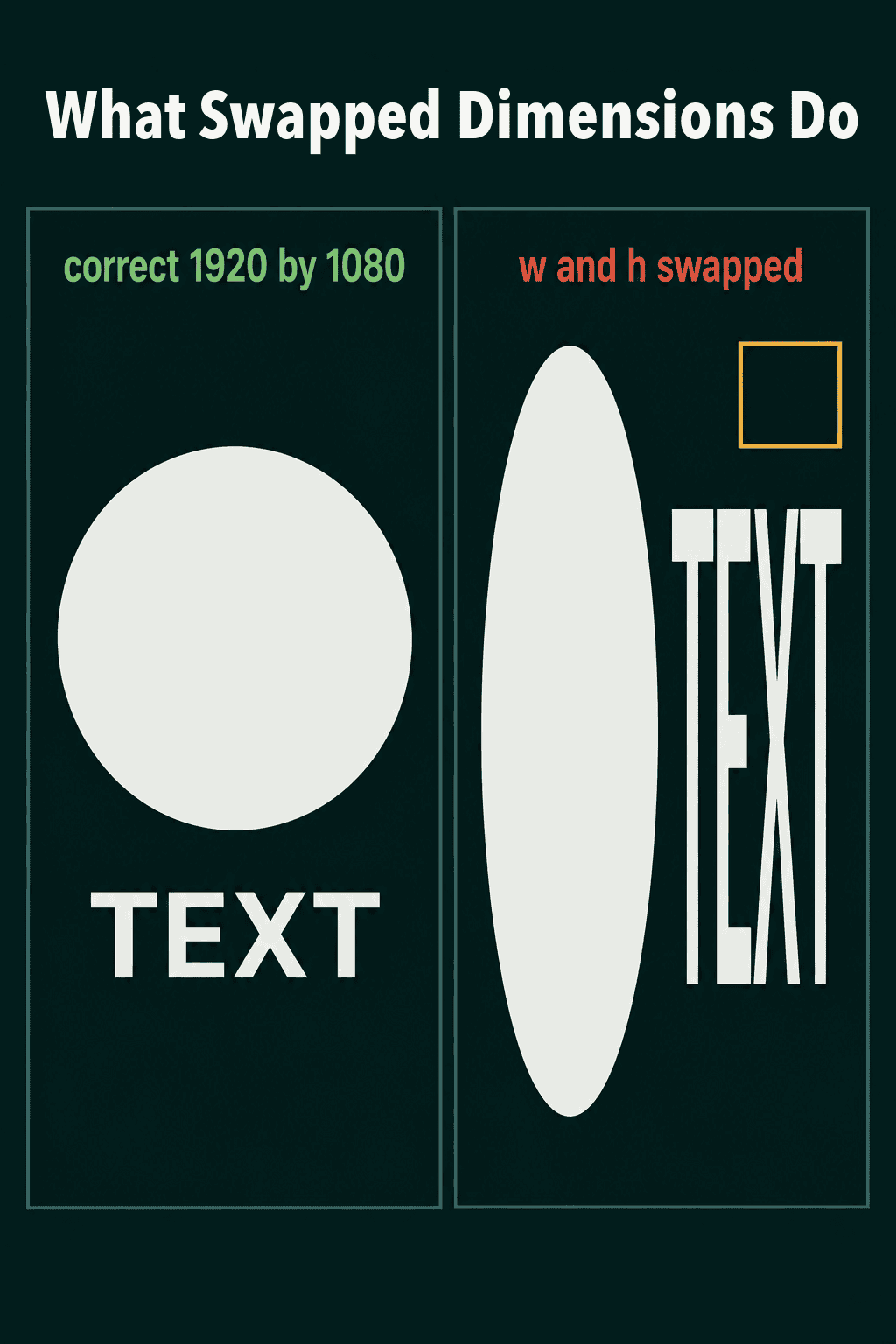
What swapped dimensions do to an image
Swap width and height and a 1920 by 1080 image gets resized as if it were 1080 by 1920. Everything stretches, so circles become ovals and text leans. Any box or mask computed for the real shape ends up in the wrong place.
Channel mistakes do a different kind of damage. A depth channel read as blue tints the whole image, and an alpha channel read as a color adds a layer that was never in the photo.
Common mistakes
- Indexing with
img[x, y]. Arrays are[row, column], so put $y$ first. A swapped pair reads a different pixel with no error. - Assuming the origin. If boxes come out upside down, one library put $(0, 0)$ at the bottom-left.
- Forgetting to move labels with the image. A crop, resize or flip has to be applied to boxes, body points and masks too.
- Feeding HWC to a CHW model. The values are fine and the layers read them along the wrong dimensions. Call
permute(2, 0, 1)once after loading. - A missing batch dimension.
expected 4D input (got 3D input)meansunsqueeze(0)before the model andsqueeze(0)after. - Letting the loader decide about alpha or gray. Call
.convert('RGB')or.convert('L')on purpose and check the channel count. - Checking only the shape. Print the dtype and device as well. A
uint8tensor in the right shape still gives the model a different range than it was trained on.
Related concepts
What is a tensor covers shapes, dtypes and indexing in general. Broadcasting explains how PyTorch combines tensors of different shapes. What is computer vision? shows what a vision system does with these tensors once they are loaded.
QuiddityML teaches pixel coordinates, channels and image tensor shapes in the images-as-data unit of its Computer Vision track. Learners there write get_pixel and shift_box_for_crop from scratch and trace the tensor shapes through loading, permute and the batch round trip (QuiddityML).